Poser Render Passes (1 Intro)

Don’t do things in 3D when they can be done in 2D.
Render passes save a zillion trial and error test-renders, and make results interactively adjustable.

Download this tutorial in PDF format (1.4 Mb).

Introduction

While working in Poser, I can build a scene, and start tweaking the lights, shadows, atmospheres, specular and reflection strength, and more. And I might like to add special effects, like depth of field (focal blur), volumetric lights, etcetera.
Especially with multiple objects, multiple lights, the use of raytracing and IDL (Indirect Lighting) and alike I have to face renders, re-renders, re-re-renders and all of them having serious waiting times even on my – pretty fast – machine.

Professionals facing a deadline, with a limit on the hours they can spend on the job, or with a customer that shows a lot of variance in his requirements, this is not very desirable. But even hobbyists might face deadlines (the image must be done before Christmas or another event), might find themselves quite flexible in the result they want to achieve, and certainly don’t have the time to spend all forthcoming hours on perfecting that single image.

This is why Render Passes are invented. Each Pass (image) addresses a specific facet of the result, then all passes are combined as layers in a single Photoshop (or GIMP or else) image handling kit, and then the layer parameters are manipulated instead of re-rendering the scene over and over again. In practice, this is not only much faster, it’s also far more interactive.

In this article, making and re-combining render passes is presented, as far as Poser and Photoshop are concerned. Vue will be added in a later stage, or in a separate article. I presume almost all Photoshop steps can be performed in other, similar image handling kit as well. Just the screens might look different.

Step 1 will deal with separating the darks: handling shadows. Step 2 will deal with separating the lights. Both steps can be made in just Poser, and can be combined in: separating darks as well as lights.

Step 3 will deal with the tools available in Poser Pro, and step 4 deals with the Advanced Renderer toolkit.

Poser Render Passes (2 Shadows)

Separating the darks

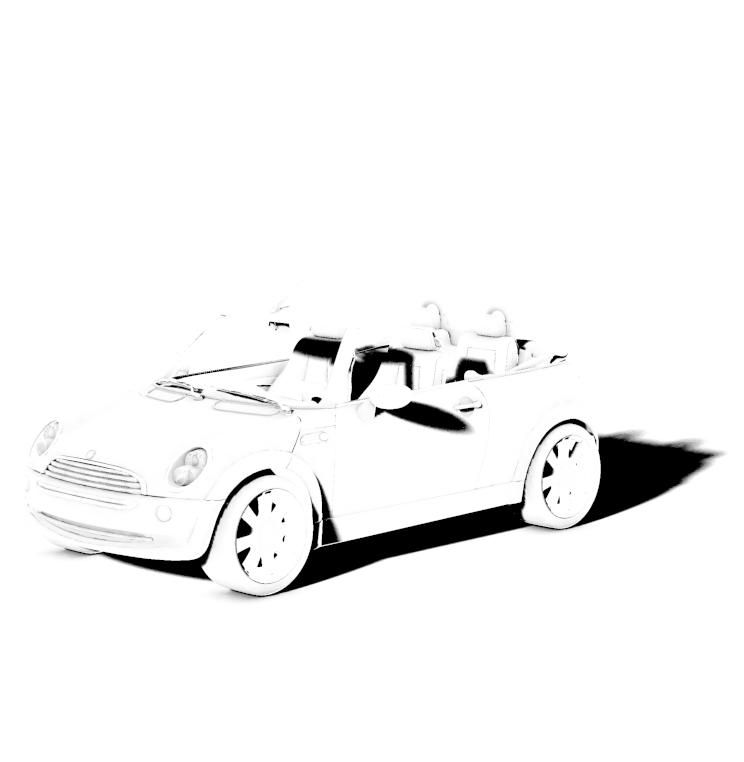
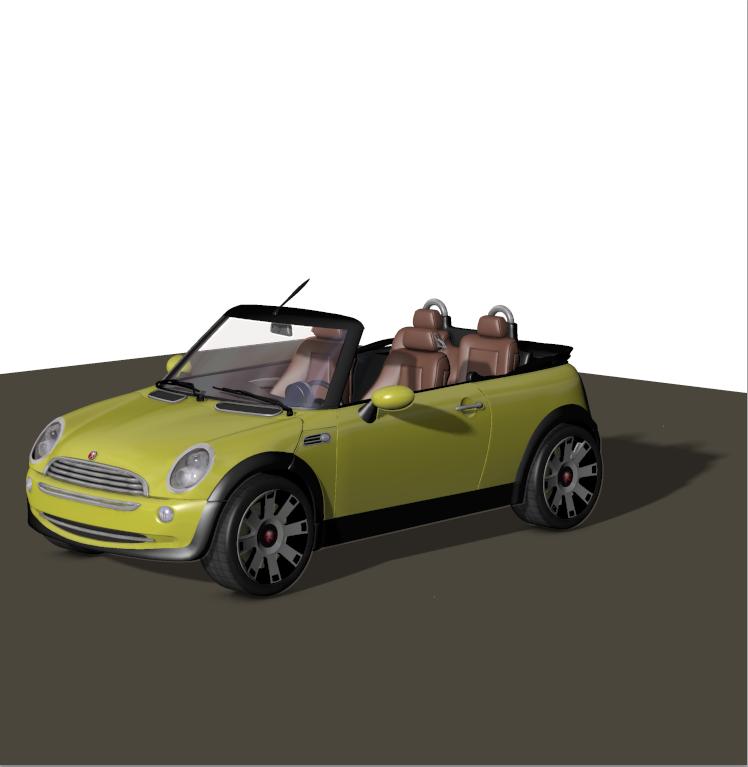
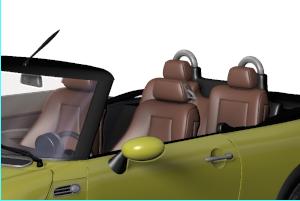
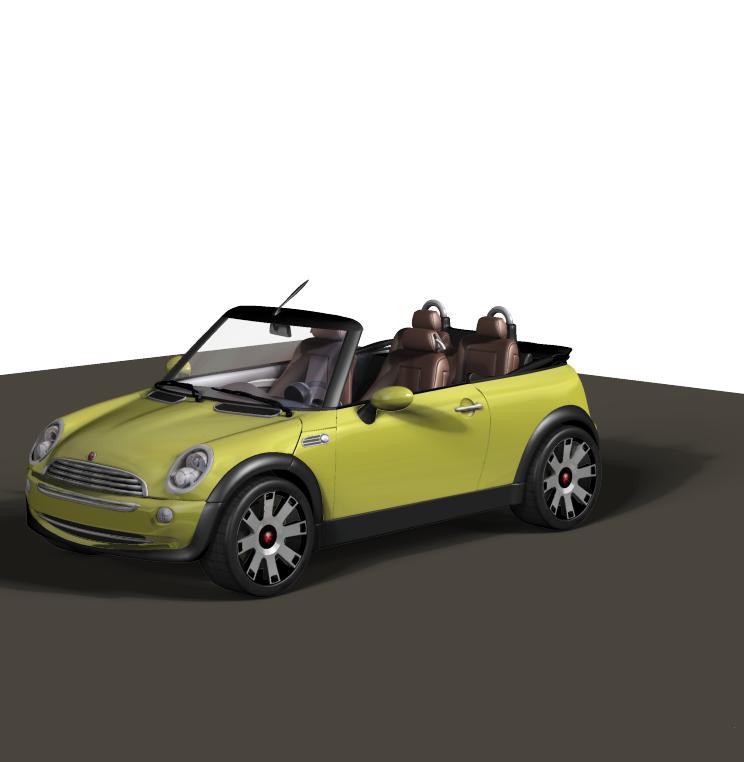
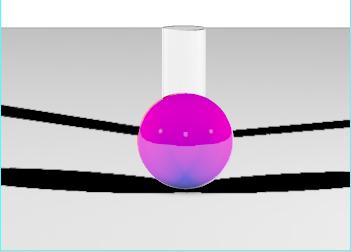
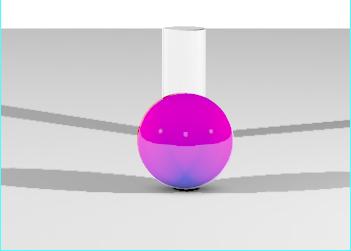
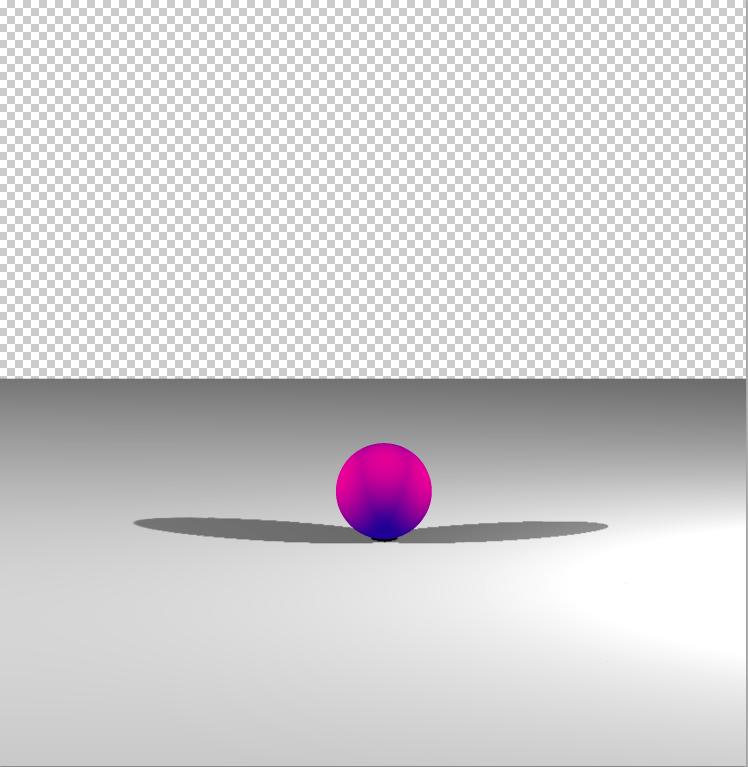
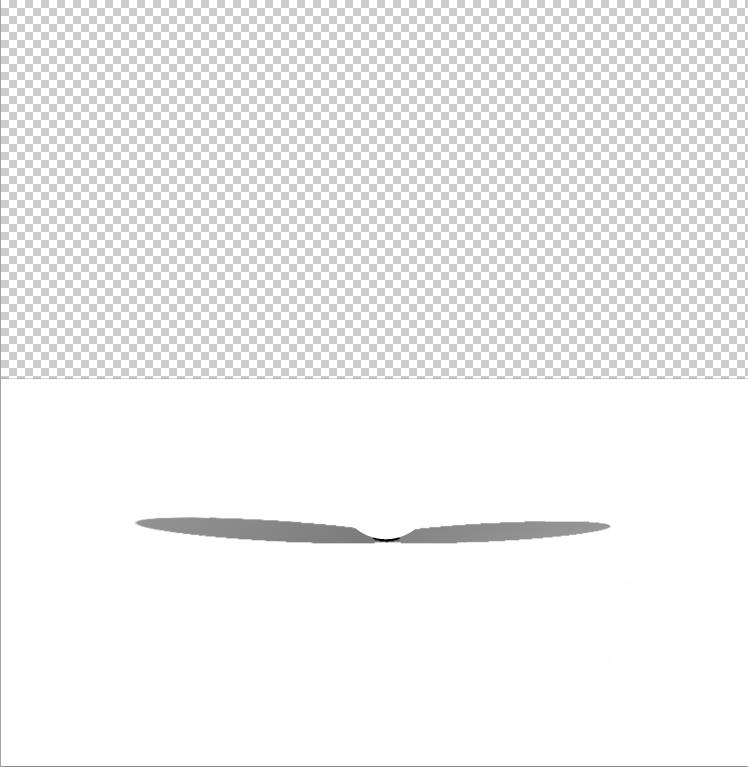
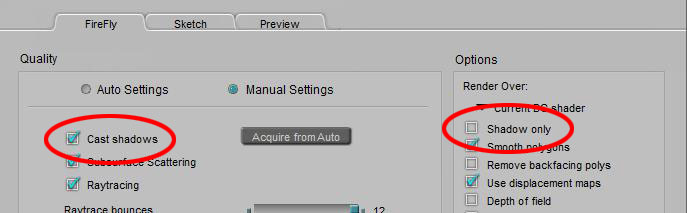
In this first elementary step I’ll present some basics: just dealing with the shadows in the image. To do so, I need one render result without shadows, and one with shadows only. This can be done in the Render Settings, the Manual department.

First: I uncheck the Cast Shadows option, render, and export the result.
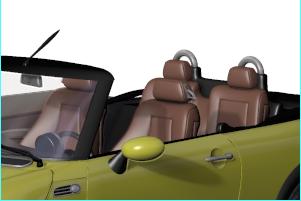
Second: I check both the Cast Shadows as well as the Shadows Only options, render and export the result.

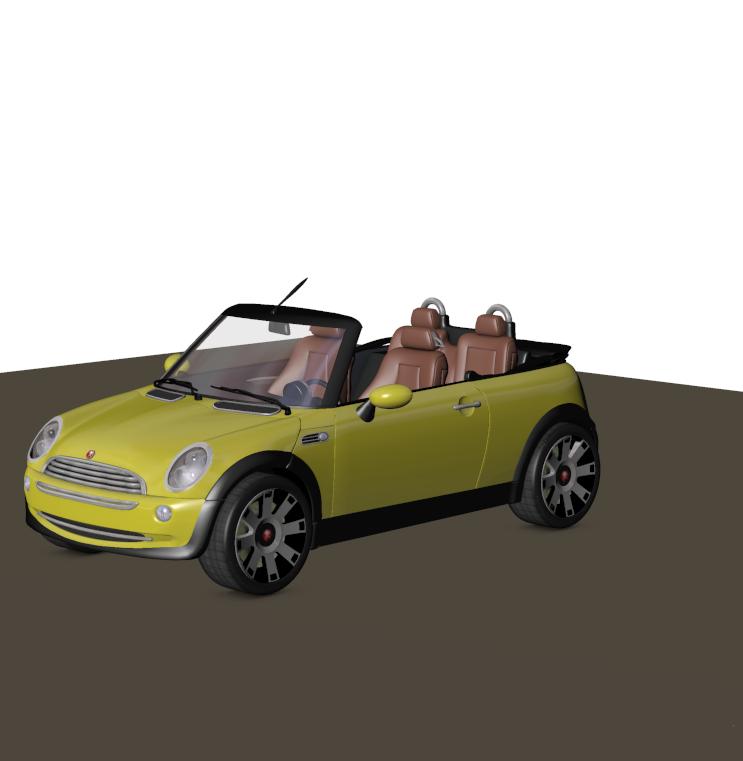
This gives me two images:

Without shadows Shadows only

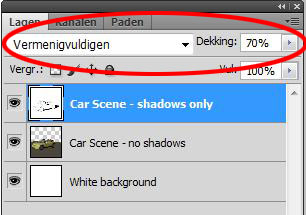
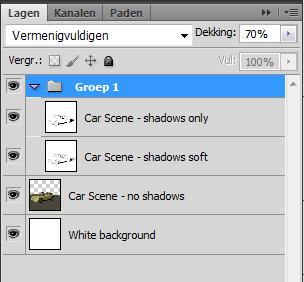
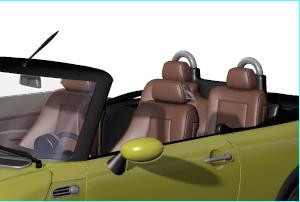
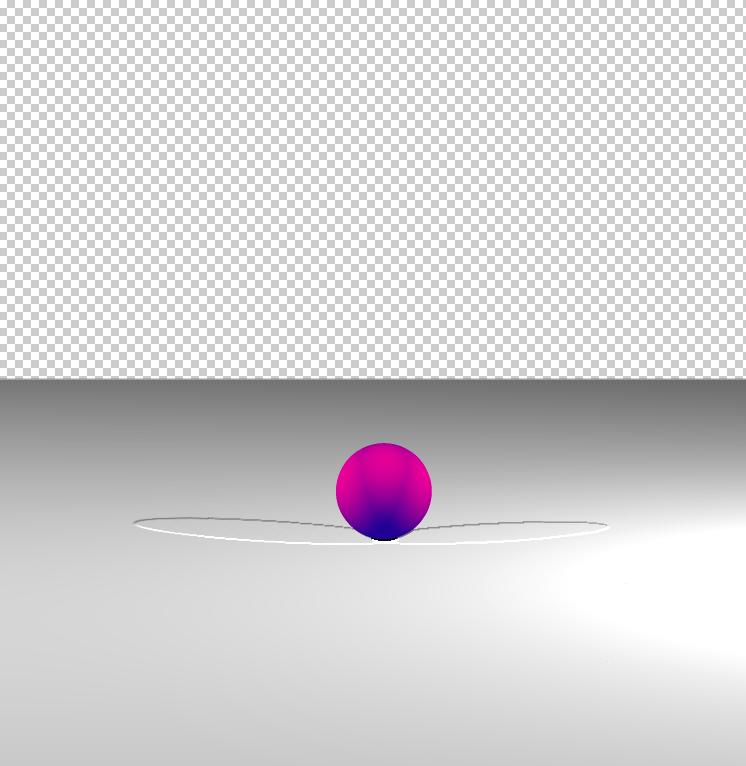
Now I’ve got to combine those two in Photoshop. Actually the color pass is the base layer, but since I exported it with a transparent background (PNG, or in Poser Pro: EXR) I’ll added an extra white layer underneath. On top of that I add the shadow layer, and I set the Blend mode to Multiply (“Vermenigvuldigen”, in my Dutch version). Right now, I can adjust the shadow strength by reducing the opacity of this layer to 70%.

=>

This gives me the same result as reducing the shadow-intensity of the light in Poser, but without the re-render.

In reality, all considerations that reduce the depth (darkness) of the shadows will also lead to blurred edges. Deep shadows have hard edges, while shallower shadowing comes with blurred edges. However, it’s a bad idea to use Photoshop blur un the Shadow-layer, because this 2D approach does not take the geometry of the scene into account.

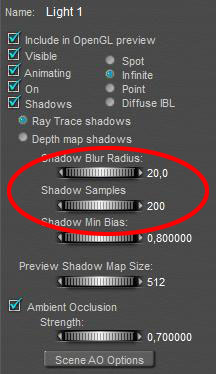
So I re-render the scene, for the shadow-pass only, with a very blurred shadow setting. Note that just tenfolding the blur radius (from default 2 to 20) might give very blodgy shadows, so I tenfold the Samples (from default 19 to 200) as well. Render and export as a new “soft shadows” image.

In the meantime, I’ve created a layer group for the shadow layers, put the already present Shadows only layer into it, and assigned the Multiply blending mode and the 70% opacity to the group while resetting the layer itself to Normal blending, and 100% opacity.

Now I can add the new Soft Shadows layer to the file (and to the shadows-group), Normal blending, 100% opacity too. Then I can start experimenting with the opacity of the top shadow layer. It’s a matter of taste whether to use the hard or the soft shadows layer on top. I prefer the hard ones, as using low opacity values for that layer gives me better control and nuances over the final result.

0% hard shadows 50% hard shadows 100% hard shadows

As a result, I’ve got one slider (group opacity) to set the shadow intensity and one (top shadow layer opacity) to set the shadow edge blur. Completely interactive, without the need for a re-render. I can stop right here, or I can use this method to establish the best settings for my final render. For instance, I might conclude that I’ll have to set shadow intensity to 70%, and shadow blur halfway (say radius 10, samples 100) for my final Poser render.

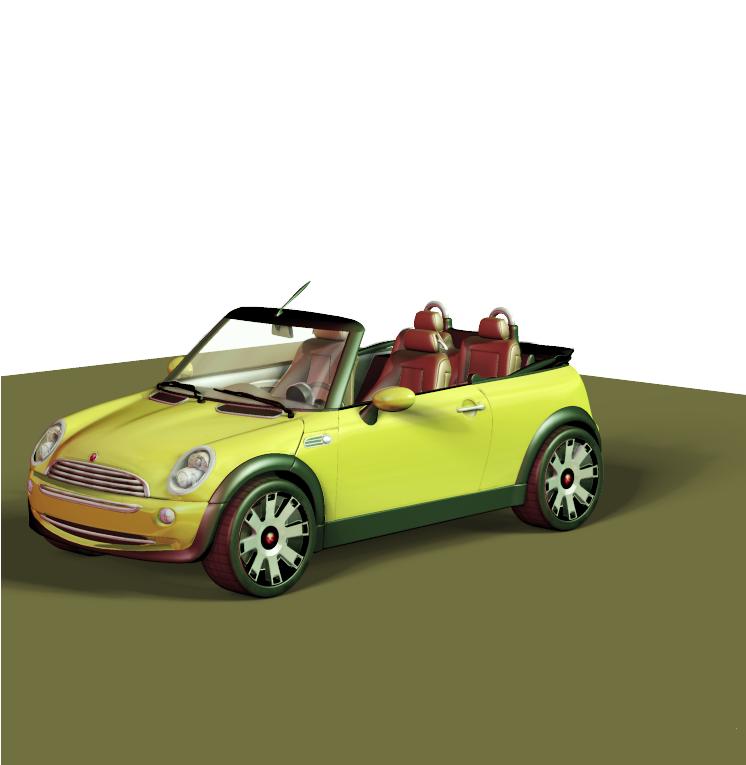
Note: if you look at the car closely, you’ll notice that there is some shadowing under the tires as well which is not dealt with. This is the result of the Ambient Occlusion setting of the light, I’ll discuss it in the next chapter.

Poser Render Passes (3 Lights)

Separating the lights

In a scene with multiple lights, I’ll have to balance those lights for color and intensity. This too can be done the Render-Pass way, to either achieve the desired result or to achieve the preferred settings for the final render.

The first thing I’ve got to do is to set my Render Settings. In the first run, I uncheck Cast Shadowsand Shadows only to get my shadow-less results. I don’t render, but just Save Settings instead.
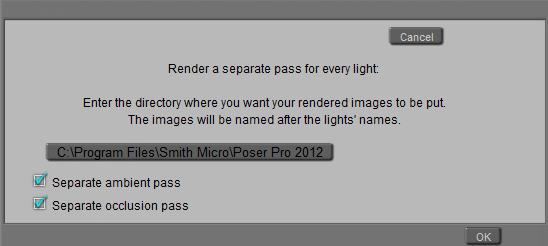
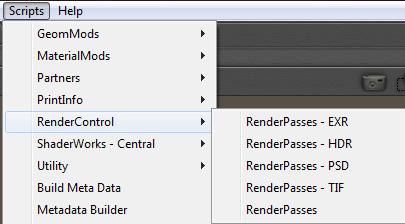
Then my help is in the menu: Scripts \ Rendercontrol \ Renderpasses:

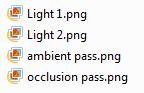
And all I have to do is to click the presented folder path to set a better path for the results. It’s well advised to make an empty folder for each run in order to avoid overwriting files. Then I click [OK] which gives me – for a two light scene and both the extra ambient and occlusion passes checked – with four (PNG) files.

Now I alter the Render Settings, check Cast Shadows and Shadows only, Save Settings, go for the RenderPasses script, select a new “Shadows” folder (which I’ve created first), and click [OK]. Same files, but:

  • The files call Light 1 and Light 2 are the shadows of those lights, so I might rename them to Shadow 1 and Shadow 2 respectively and add them to the previous collection with the Light files.
  • The Ambient pass and Occlusion pass files can be discarded. Even better, the y can be checked OFF in the dialog box. With shadows only there will be no meaningful Ambient result while the Occlusion result will be the same as in the previous run. I will not use Ambient in this chapter, though.

Notes:

  • For all lights, switch OFF their Occlusion settings, and set all of them to 100% intensity, full white, 100% shadow.
    I prefer raytraced shadows for better quality and I have raytracing switched ON in the Render Settings. But that’s a personal preference only, shadow maps will work as well.
  • Following the routine from the chapter on shadows, I perform the shadow-run twice.
    First, all my lights have hard shadow setting (radius 2, samples 20).
    Second, all my lights have soft shadow setting (radius 20, samples 200).
    Next to the Shadow 1 and Shadow 2 files, this gives me Soft Shadows 1 and Soft Shadows 2 as well.
  • When you’re using Poser Pro, be sure to switch OFF Gamma Correction for the first, shadowless renderpass. Otherwise you’ll end up with a too much bleached result. For the shadow passes, it’s better to leave GC ON.

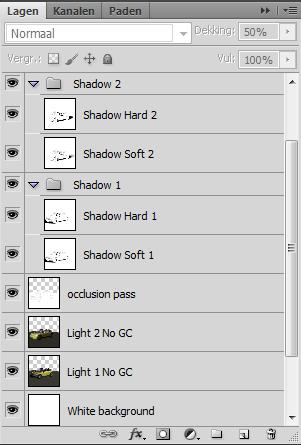
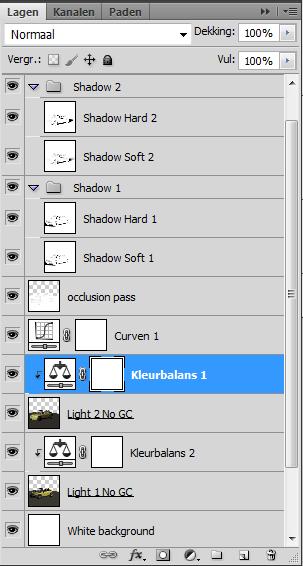
Okay, now I’ll have to combine the intermediate files to Photoshop layers. Like in the previous chapter, I make a white background layer to handle the transparencies from the PNG files, and I bring in both Light layers. The first one is set to normal blending (with the background) and the second is set to Screen blending. This blending mode acts if you’re projecting a slide on a wall, which is exactly what happens when we’re adding lights. To reduce the intensity of the second light relative to the first, I can reduce the opacity of that light-layer. If I want to intensities just the other way around, I have to swap the Light layers (and their blending modes).

Then I add the shadow layers. Occlusion – or: self shadowing – has its own blending mode and opacity, the other Hard- and Soft shadow layers per light can be grouped. Each group has Multiply blending and its own opacity, and within each group hard and soft shadows can be balanced separately.

Now it becomes so easy to play.

Softer shadows (group opacity to 50%, hard shadows opacity to 15%), a brightness boost using a curves adjustment on the light-layers, and a color balance adjustment to both lights: more green to Light 1 (right/back side), more red to Light 2 (left/front side).

Poser Render Passes (4 PoserPro)

Featuring Poser Pro

Poser Pro, from version 2010 up, presents some additional features for generating render passes, and high quality results.

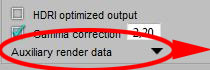
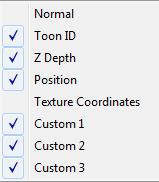
In Render Settings, the right bottom corner, you”ll find the Auxiliary Render Data. Just check a few, render, and export the image (as, say, Multipass.png).

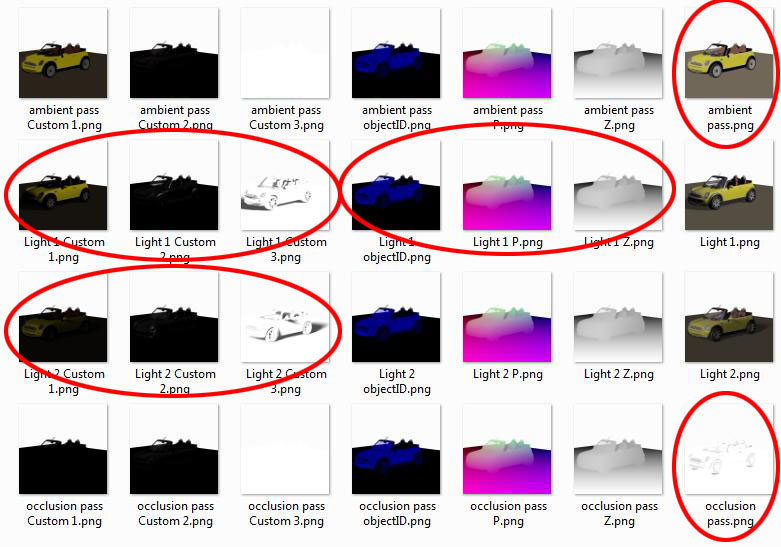
In this example I’ve checked six options, and hence I get seven files:

  • My Multipass.png final render result
  • Multipass Custom 1, 2 and 3.png results
  • Multipass P, Z and objectID.png results

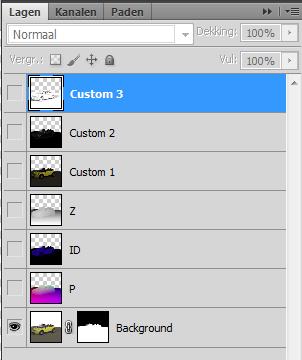
It does so for each image format, JPG, TIF or whatever I select. Unless I select the PSD format, this gives me one Photoshop file with seven layers. Blending modes nor opacity is set yet, layers are switched off and the final render result is presented as the background layer, with a transparency mask.

For the High Definition results (16 or 32 bit per color) file formats HDR and EXR things work exactly the same, you’ll get all files in one export. Please remind to check the “HDRI optimized output” box before rendering when you want to go the HDR route. EXR is Poser internal format, use it when you can afford it.

Let me show you what can be done now.

Custom 3
Assuming that nothing else is arranged for (*), this image or layer stands for: Shadow. So the blending mode should be set to Multiply. And as a bonus we can forget about that previous Separating the darks chapter, because this is catered for already.

Custom 2

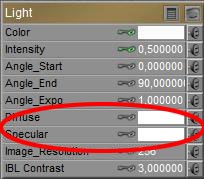
Again, assuming that nothing else is arranged for (*), this image or layer stands for: Specular. You might be aware that each direct light is represented by a Specular and a Diffuse channel, as can be seen in the Material Room. Now the Light layer which was one single item in the previous chapter, gets split in its two components. As this is a Light layer, blending mode should be: Screen.

To make the maximum use of this, I push the specularity in materials and lights to their limits while keeping the proportions between the various materials. Then I can reduce the shine in the scene by controlling the opacity of this Specularity / Custom 2 layer.

Custom 1
Again, assuming that nothing else is arranged for (*), this image or layer stands for: Diffuse. This is the other – and effectively most relevant – portion of the lit scene. This layer should be in Screen mode too.

(*)

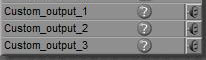
Each PoserSurface in the Material Room has three extra slots, where anything can be plugging in what you like. The result of that will not appear in the render result, but will end up in the appropriate output file or PSD layer to help you to establish specific masks for special effects. When not filled, Diffuse, Specular and Shadow take the place of Custom 1, 2 and 3 respectively.

ToonID or ObjectID
Each material gets its own ID (or you can assign the same ID to more materials, but why should you do that?), and in this layer each area with the same ID is represented by its own unique color. So, especially when I set the range of the Photoshop colorpicker to 1×1 (point) resolution, I can make selections in the image by just picking a color. This way, I can build masks ans working selections very efficiently. Hence, this layer is a helper, not part of any result as such.

Z-Depth
The greyscale in this image or layer represents the distance from the camera into the scene. Nearby is bright, far away is dark. This helps me to place some fog in the scene.

  • I make a working copy of the layer, and replace all transparencies by black: these areas are really far out
  • Then I invert this layer, so near becomes black and far away becomes white
  • With Ctrl A, Ctrl C is put a copy on the clipboard
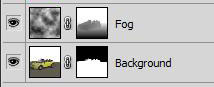
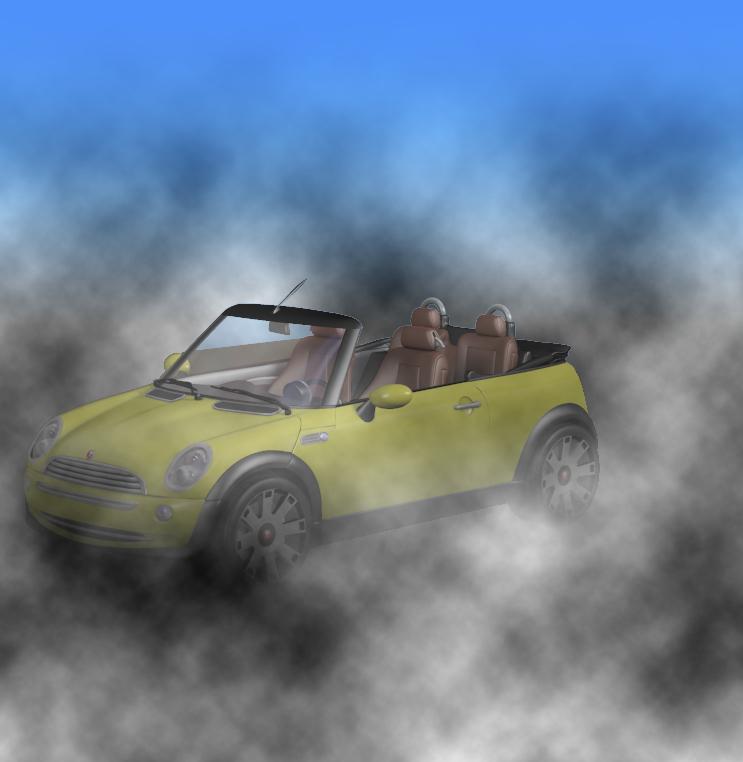
  • I add a new layer, and fill it with some cloud structure (Filter, Render, Clouds)
  • I give this layer a mask, open the mask (Alt-click), and with Ctrl V I put the inverted Z-Depth into the mask
  • Voila, fog increasing with distance
  • And now I can alter the brightness and contrast of the mask to change the fog density and fall-off rate.

Or, use a dark teal color instead of the clouds, and you’re in a deep sea environment. Take your pick, instant atmospherics.

Another popular thing to do with Z-Depth is creating a Depth of Field effect, or: focal blur. I start with a single layer copy of everything else in the image, Crl+Alt+Shift E does the job in Photoshop merging all (visible) layers into a new one. I put it on top, and give it a serious amount of blur. Then I give it an empty Mask, and copy-paste and invert the Z-Depth into it exactly like I did when making fog. Or otherwise: Ctrl+click the mask of the Fog layer, this will turn that mask into a selection, and then assign a mask to the Blurred layer, which turns my selection into a mask again. Whatever suits you best.

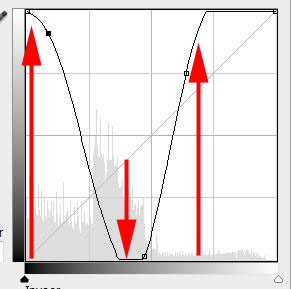
Now the blur is strong at the back (mask is white), intermediate in the middle where I want the sharp focus (mask is grey) and absent at the front (mask is black). But I need it black in the middle (no blur) and white upfront as well, that creates the focal blur effect.

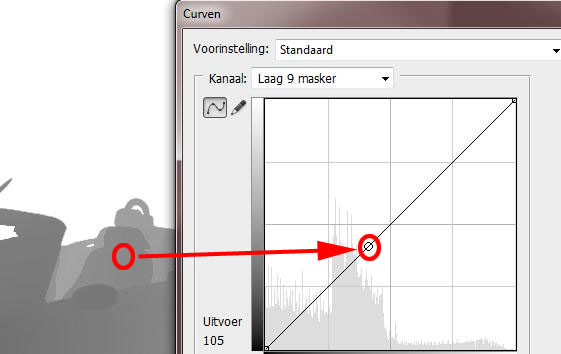
So I Alt-click the mask, and start applying the Curves adjustment. By clicking the drivers chair a dot on the curve tells me how grey it is (105 out of 255 in this example below), and then I raise the extremes and lower that 105 midpoint. That’s it.

=>

Position
This a bit like Z-Depth, but now I can find the X,Y,Z positions in the respective R,G,B channels of this Photoshop layer. You can dream up your own applications for this, one I use often is: use the green (Y, height) channel for making height depending ground fog.

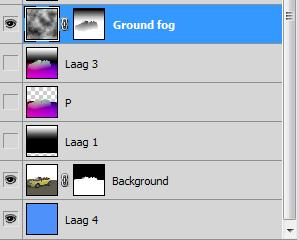
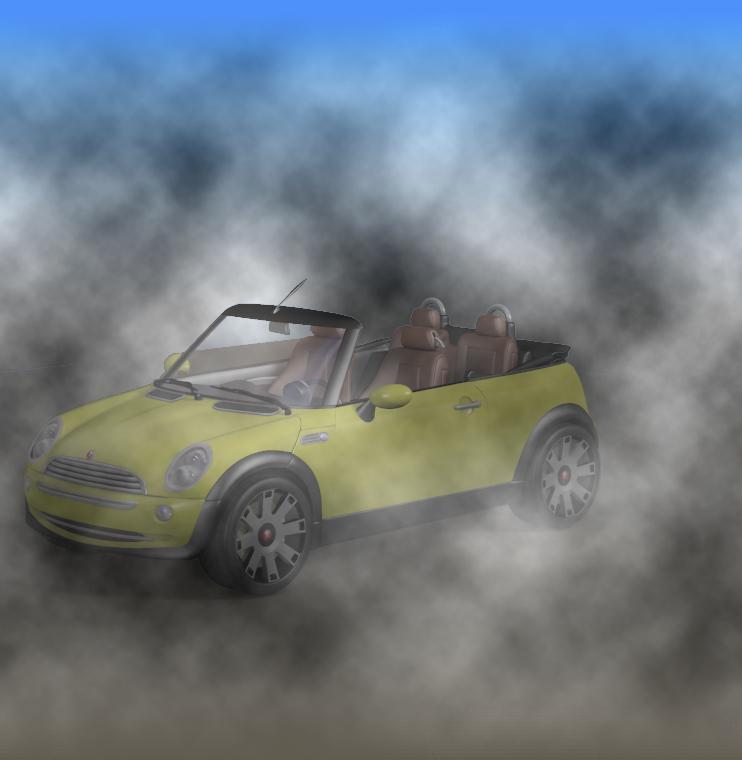
I gave the P(osition) layer a black-to-white gradient background (layer 1) because I had to get rid of the transparency, created a new combi layer (Alt+Ctrl+Shift E) – layer 3, switched to channels, selected and copied to Green channel to the clipboard, pasted this into the mask of the cloudy Ground Fog layer, and inverted it as ground fog is dense (white) at the ground. With an extra blue background, this is a first result.

For a better result, the ground fog density should be distance dependent too, shouldn’t it? So the final cloud mask has to be the multiplication of this height-dependent mask, and the previous depth-dependent mask.

So I create two layers, each containing the masks, set the bottom one to Normal blending and the top one to Multiply, I combine the layers (Ctrl E), and select – copy – past the result into the cloud mask.
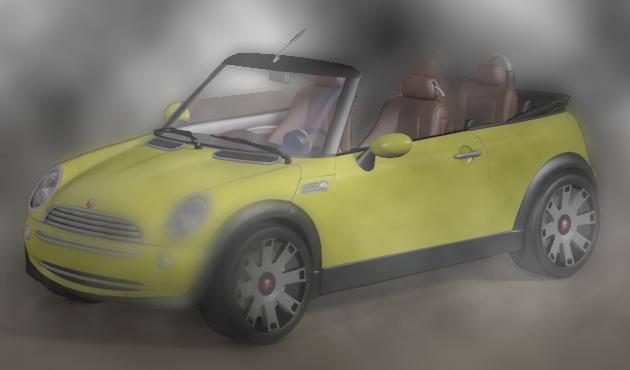
See the result; a brownish cloud hue puts the car in a nice sand storm.

Do note that I just demonstrated the use of the height and depth information over a simple background. Instead of this background, the Diffuse, Specularity and Shadow layers should be combined in proper proportions. Then the fog layer should be on top of them, in Normal mode.

So, with this method I don’t need the first Separate the Darks – method. But I still can use the second Separate the Lights approach. Since this method produces seven files per render (as I ticked six layers plus the total render), and makes a render for each light (I’ve got to in this case) plus the two options (Ambient and Occlusion) checked, I end up with (6+1) * (2+2) = 28 intermediate PNG results.

A lot of those are duplicates, or of no use, and can be discarded. The ones I need are:

  • For Light 1.. N the Custom 1,2,3 (Diffuse, Specular, Shadow) layers, and perhaps the final results as well
  • Only one set of ID, P(ositon) and Z(-depth) layers, as they are all the same for the various lights
  • The ambient pass and the occlusion pass.

And when I want a hard-shadow and a soft-shadow version, I’ve to alter the settings per light, and rerun without the need for an extra Ambient or Occlusion. And I make sure to rename the first Custom 3/ Shadow layers first, otherwise I won’t get anything new. From then on, I can put all the required layers in one Photoshop file and start coloring and dimming the diffuse, specular and shadows on a per-light basis, and so on.

Some notes:

  • Existing files are NOT overwritten, the new outputs are just not saved. So please do save in empty folders or rename existing files if you want to make any real progress.
  • As the Diffuse / Specular / etc layering aims at exporting the image in PSD format, the split is available when saving to other image formats as well, but limited to the 8-bits per color formats only. PSD, JPG, TIF etc are fine, but the split does not work when exporting to HDR or EXR (32 bit per color) format.
    Of course, switching lights on/off and blackening Diffuse and Specular channels per light can be done manually or in a new script. That’s tedious though.
  • The script which does the per-light split is written for PNG only. Perhaps someone can build a file-type selector, but in the meantime I’ve created just a few duplicates. The “png” buzzword appears three times in the script as a SaveImage parameter, and can be replaced by other buzzwords. “tif”, “jpg” and others are fine according to the PoserPython manual, but the (undocumented) “psd”, “hdr” and “exr” work fine too.
    Again, in combination with the layer-setting, choosing any 8-bit per color format gives the fine split on diffuse etc on a per light basis, while the 32-bit formats do not give the layered results but still make results on a per-light basis.

Poser Render Passes (5 Advanced RS 2)

Advanced Render Settings 2

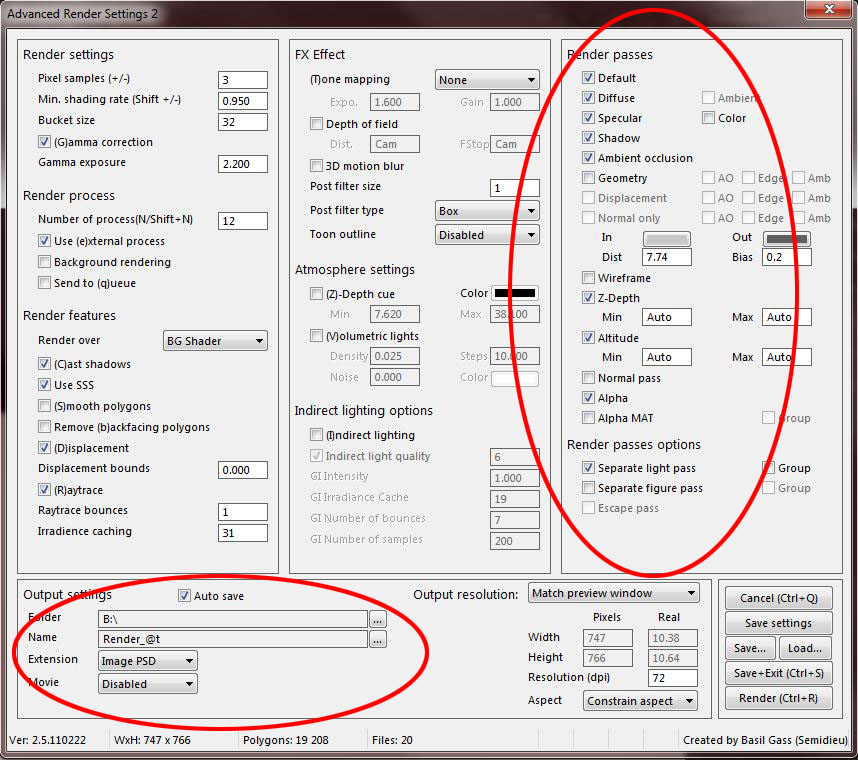
Yes it does exist. The script that gives me instant access to all relevant Firefly parameters AND the ability to make render passes with even more options than before AND on a per-light basis AND with time-stamped filenames so I cannot overwrite previous files accidentally AND in full combination with all file types AND without the superfluous, redundant output files.

So now I can make EXR files for Diffuse, Specular and Shadow. But even for Z-Depth and Altitude.

A few notes:

  • PSD files come out as single layers results, so each pass gets its own PSD file.
  • Some obscure passes (like Wireframe) don’t combine well with HDR or EXR output format. But who needs that anyway, and the author is looking into it.
  • Options which are not supported by Poser itself might not show up. Like HDR and EXR file export, or the Render in background or Queue, or Gamma Correction, which are all Poser Pro 2010+ only.

Advanced Render Settings 2 (*) is one of those great tools created by Basil Gass (Semidieu), and can be purchased for less than $20 at www.RuntimeDNA.com or go directly to http://www.runtimedna.com/Advanced-Render-Settings-2.html .

(*) ARS (see http://www.runtimedna.com/Advanced-Render-Settings.html ) is for Poser 7 / Poser Pro, while ARS 2 is for Poser 8 / Poser 2010 and up, even supporting the new SubSurfaceScattering options in Poser 9 / Poser Pro 2012.

And it comes with some extra tools (which nowadays can be found in Poser 9 and PoserPro, at least partially, but not everyone has those already). And a good manual that finally tells you where all those render options are for, plus some good tutorials on how to use the tools in combination with Photoshop.
Very recommended, when you want to deploy render passes to the fullest, especially in combination with high resolution imaging, or with (non-Pro) Poser versions which don’t have the PSD-layering build in.

But beware…

Up till now I’ve discussed relatively straightforward scenes, with direct lights, and results concerning Diffuse, Specular, direct Shadow and indirect Shadow or: Occlusion, and Ambient for some lighting elements. Various tools and procedures might present similar results, differing mostly in the amount of effort to get the details out.
Full-fledged Poser scenes however might be more complicated. Indirect lighting (IDL), objects – like SkyDomes – explicitly used as lighting elements, texture maps assigned to reflection, and more, all can support or hamper the way each tool produces the required results effectively or not at all. This is where we get differences at the content level, in the produces passes themselves.

That is what the next chapters will be about.

Poser Render Passes (6 Material Details)

Considering Material Details

This Render Passes article is not about the details of the Poser Materials, but it is worthwhile contemplating them a bit. As you have noticed in previous chapters, aspects like Diffuse, Specular and Shadow can be diverted to separate layers or images. This gives me the possibility to handle color, highlights and darks in details, even on a per-light basis.

But Poser supports other aspects, like Ambient and Reflection, and also supports Indirect Lighting (IDL). How do these relate to the split (in Poser) and glue (in Photoshop) approach? And what are then the best ways to get the required results out efficiently?

My suggestion on doing Render Passes, which applies to all cases that PoserPro is used, is to switch off Gamma Correction. Because:

  • Rebalancing highlights and lowlights can be done in post, based on the available layers
  • When required the fine details in shadows can be secured by making a Shadows Only render, and then using Gamma Correction or – even better – exporting that result in high definition (EXR) format. But since the nuances in the dark usually appear in situations with dark colors combined with shadows, and render passes present those separately and make you the chief of the combination, it becomes questionable whether separate techniques are required to get those details in the individual layers themselves.

Just FireFly

When using just Firefly I can make a shadows-only and a shadow-less result as described in chapter 2 Separating the Darks. Unless I’ve got Poser Pro 2010+, I can select sub-passes in the Auxiliary Render Data list in Render Settings, as described in chapter 4 Featuring Poser Pro.

  • Custom 1
    presents Diffuse, Ambient, Refraction and – given the chance – Shadows. And in the case of IDL: plus color bleeding and all consequences of using too much light (like loss of shape and depth), especially when a SkyDome is introduced as an additional omnipresent light source. All in one result. Too loose the shadows I’ve got to uncheck Cast Shadows.
  • Custom 2
    presents Specular and Reflection, both in one result. Whether or not Cast Shadows is checked does not matter.
  • Custom 3
    presents Shadows, if Cast Shadows is checked, otherwise it’s blanc. In the case of IDL, shadows will get reduced by the surplus of available light, which becomes especially noticeable with a SkyDome around the scene.

The other sub-passes behave as described earlier. So, I just make a run with Cast Shadows checked without Custom 1 elected, and another run with Cast Shadows unchecked, with only Custom 1 selected. And I do have to save to an 8-bit per color format (PNG) as those sub-passes don’t apply to the high definition (HDR/EXR) formats.

The Render Pass Script

As described in chapter 3 Separating the Lights, this script generates separate passes per direct light in the scene. And then, when Poser Pro is used, is also saves these light-passes with the sub-passes described above. Then the case of using IDL and SkyDomes becomes interesting: at each light-pass, the SkyDome lighting is present too, but somewhat reduced compared to the final, total render. I don’t know how they do it, but when the Light-passes are combined in Photoshop using Screen blending mode, the IDL lighting appears properly. I imagined there could be a problem, having IDL present in each Light layer, but there isn’t.

The script also offers Occlusion and Ambient. Both come as rendered with all lights off. Without IDL, the Ambient pass presents a combination of Diffuse and Ambient but I don’t know what to do with it, while the Occlusion – Custom 1 pass offers the Ambient alone and the Custom 3 pass offers the neat self-shadowing. With IDL however, the Ambient pass presents a neat ambient while Occlusion still presents the self-shadowing, but goes wild in the Custom 1 sub-pass. That is: since all direct lights are off, a SkyDome with its color in Diffuse will not contribute either and leaves the Ambient channel of the ball, plus some color bleeding. But when the color of the Dome is in Ambient, the Occlusion- Custom 1 subpass presents us some IDL-only like version of the scene.

Are you still with me? Or are you feeling a bit like: let’s shut on and off IDL, let’s shut on and off shadow catching, let’s switch on all auxiliary sub passes, let’s render, and then let’s pick everything that might contribute to the result. Can’t blame you, sometimes that my approach too.

So, where are we?

  • I can get Occlusion (self shadow) separately.
    I just use the RenderPass script and check Occlusion.
  • I can get Shadows, separately, even per light.
    Either by rendering with Shadows Only or by selecting the Custom 3 sub-pass (PoserPro, 8-bit per color output (PNG, not EXR), and preferably IDL off), and by using the RenderPass script for a per-light result.
  • I can get Reflection and Specular, but only together. And per light separately
    That is: by selecting the Custom 2 sub-pass which requires PoserPro, 8-bit per color output (PNG). IDL does not matter, and I can use the RenderPass script for a per-light result.
    Not bad, as both are different sides of the same medal: reflection deals with surrounding objects while specular deals with the direct lights. In real life, these always come as one. The downside is that I have to find the right balance in Poser itself. But as long as raytrace nodes are used instead of reflection maps, I might render with raytracing switched off to get Specular only. And I can render while having all specular channels of the lights switched off, manually (or with a script). This might give me Reflection only, but without the reflection of the specularity in the surrounding objects.
    Does it matter whether I use reflection by raytracing or use a reflection (texture) map instead? No.
  • I can get Ambient, separately
    I just use the RenderPass script, check Ambient and set IDL on. Or I leave IDL off, check Occlusion and use the Custom 1 subpass which requires PoserPro and 8-bit per color output (PNG).
  • I can get Diffuse but only in combination with Ambient and Refraction.
    It requires the Custom 1 subpass which by itself requires PoserPro and 8-bit per color output (PNG), and preferably set Cast Shadows OFF. When using the RenderPass script it comes even per light. When the final result requires IDL, leave it on here as well but do note that a strong IDL SkyDome may wash out most object-shape and scene-depth.

Advanced Render Settings 2

Do I need an additional tool, as most of the passes can be made without it? I think I do, since it not only can do more and better but also saves me most of the hassle.

In the first place I can get Z-depth and Altitude (the Y-part of Position) and Alpha MAT (the equivalent of Toon/Object ID) without the sub-passes, and hence without the need for PoserPro or with PoserPro, it works for the high definition output as well.

Second, I can get Shadows, and everything else shadow-less, in one go: I just check the Shadows option and I uncheck the Cast Shadows for rendering, as the shadow pass is generated even when they’re off in the rendered result (tip: save the settings before rendering). I can ask for separate light-passes as well (even separate figure passes). I must render without IDL though, hence I can get it without the need for PoserPro or with PoserPro, it works for the high definition output as well. Note that I can get separate shadows in an IDL render as well, but that requires the Custom 3 subpass, and why should I follow the hard way?

Third, I can separate Reflection and Specular, provided that I render without IDL and that I use the Custom 2 pass. So that requires PoserPro and 8-bit per color. The reflection then can be found in the Color \ Custom 2 pass.
Specular comes on a per-light basis, when requested so by ticking that option. Note that if I don’t crank out the reflection as described, I can still get the Specular + Reflection combination in the Custom 2 sub-passes of each light. I can’t get Reflection out separately when using just Poser, or when exporting to EXR.

Forth, I can get Diffuse and Ambient out separately, I just tick the boxes. Diffuse can come per light, as requested. In the meantime, the (per light) Custom 1 sub-passes give me Diffuse + Ambient + Refraction, and those sub-passes require PoserPro and 8-bit per color (PNG) output. I’ve found no way yet to get out the Refraction separately. But at least I can alter the effect by adding or subtracting Ambient and/or Diffuse from this layer, which is nice anyway.

Poser Render Passes (7 And more…)

And more…

Adding shadow or light

Reducing effects was simple, I just had to turn the opacity slider down for a shadow or light, or ambient or reflection or else. But how about enforcing an effect? More light, stronger shadow, more reflection?

Well, each layer or group in screen mode acts like an additional projector beaming an additional image onto the result, and each shadow layer in multiply mode does something similar for the lack of light. So, I only have to add copies of the layers to add an extra light or shadow, or a stronger reflection of something else.

And for creating say 1.5 times the effect? Well, I just add a duplicate layer and set its opacity to 50%, so I’ve got 1.5 layers for that effect. Now, let’s reconsider re-combining the passes to one Photoshop result.

Combining Shadows and Light

It was stated earlier, that adding a shadow to a shadow-less layer required a Multiply blending mode for the overlaying shadow layer. But what to do when there are more of those layers, say on a per-light basis?

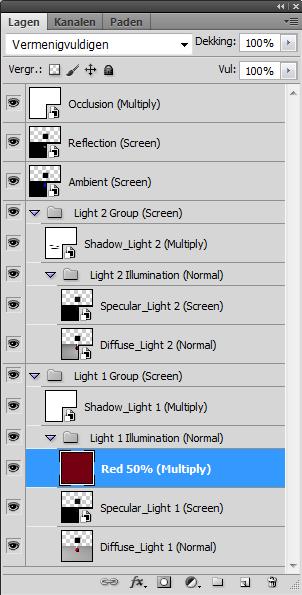
Actually, in that case the relevant sub-passes should be grouped on a per-light basis, having the shadow on top within the layer (multiply mode), and having the group itself in screen mode to blend it properly with the other light-groups. So underneath the shadow sub-pass we’ll find the diffuse, specular, reflection and all other sub-passes for that light. The bottom one in Normal mode, the others in Screen mode.

Now, I’d like to reduce the intensity and alter the color of that light. This should not be done at the group level, as that will alter the shadow as well. And dimmed reddened lights still produce non-dimmed black shadows. But as long as the group really addresses one single light, and don’t include additional IDL from other sources, all the other passes for that light must change. So either I can alter them in sync (tedious), or I can put them in an additional “illumination” subgroup. See the image.

When I want to alter the color and intensity of the light, I can put a filter in front of it. This will make a new layer, on top in the Illumination group. Like I did with a Red, 50% brightness layer. And since it takes light out, it’s set to Multiply blending. Note that reducing the Opacity of this layer just reduces the filtering: the light gets less red and less dark. I also can put in a Red, 100% layer, and reduce the Opacity of the Illumination group. Take your pick.

Some engineering stuff

Let’s look at the Photoshop layering presented in the chapter on Light: the examples put all shadowing at the top and all lighting under them. For total light L, total shadow S, light and shadow L1, S1, L2 and S2 from lights 1 and 2, the math goes:

L * S = S1 * S2 * L thanks to the Multiplying of shadows,
and (1-L) = (1-L1) * (1-L2) or: L = L1 + L2 – L1 * L2 for the Screening.
This combines to : result L * S = S1 * S2 * L1 + S1 * S2 * L2 – S1 * S2 * L1 * L2

Now, let’s look at the layering just presented above.
( 1 – L * S ) = (1 – L1 * S1) * (1 – L2 * S2) so result L * S = S1 * L1 +S2 * L2 – S1 * S2 * L1 * L2

So in the first approach, the contribution S1L1 from light 1 is additionally reduced by S2, and vice versa for the other light. In other words: there is too much shadow in the first approach.

First approach,
one light is not softening the   shadow of the other light.
Second approach,
one light is softening the shadow   of the other light.

Breaking combinations

Some render passes or sub-passes give a combined result, like Diffuse + Ambient + Shadows, and a separate Ambient pass, but no separate Diffuse pass. Hence the question: can I create one? Not for the sake of it, but for enhancing that particular aspect of the image.

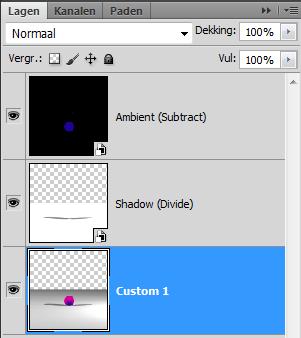
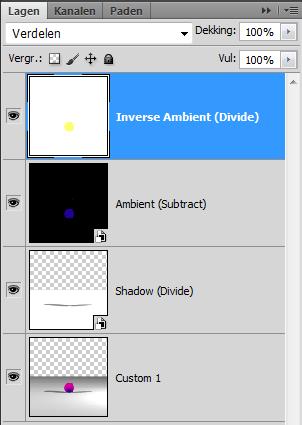
Well, since shadows are added to the result by multiplication, and since Photoshop supports a Divide blending mode, taking shadows out is a no-brainer. Add the shadow layer (B) on top of the compound layer (A), set the shadow layer to Divide blending, and done (D). Unless you’re experiencing edge-effects (C). This indicates that the shadow layer does not line up exactly, and you might move it a pixel vertically and/or horizontally. BTW: this happens all the time to me, I don’t know if its Photoshop or the render pass creation itself but in general, passes move one pixel (to the left and down) when putting them together. Moving them back gives me the desired result.

A B
C D

This intermediate shadow-less result still is the combination of Diffuse and Ambient. Since this combination is made in Poser, it’s the result of a plain addition. And since Photoshop supports a Subtraction blending, this is what I have to do to get the Ambient (E) out to get the required Diffuse-only (F). Again, watch the edges and if necessary, move the layer a bit.

E F

So Multiply and Screen are the ways to combine passes into a result, while Divide and Subtract are the ways to break combined passes into singular ones. Note that Photoshop supports Subtract-blending and Difference-blending. You need the first, not the second.

With a remark: Subtracts works well on Poser results because Poser itself uses plain addition (instead of screening) to make its results. When other applications (Vue perhaps) use screening instead, one has to find a way to un-screen. Photoshop does not support this un-screen blending mode directly. The trick: if you want to un-screen Ambient out of a Diffuse & Ambient combination, then you’ve got to Subtract and then to Divide by the inverse of the Ambient layer (in Photoshop: Ctrl+I). So you need the Ambient layer twice, first in Subtract blending, then its inverse in Divide blending.

The math:

  • Say, C is the combination of Ambient A and Diffuse D, by Screen blending. That means: ( 1-C ) = ( 1-A) * (1-D ) – multiplication of the inverses, that’s the definition of Screen blending
  • So, by rewriting, D = 1 – (1-C)/(1-A) =(*) [ (1-A) – (1-C) ] / (1-A) = (**) [ C-A ] / (1-A) and this last statement says: subtract Ambient from the Combi, and divide the result by the inverse (***) of the Ambient.

(*) substitute the first 1 by (1-A)/(1-A) (**) just rewrite (***) the inverse of A is: 1-A, black turns white, red turns cyan, blue turns yellow, etc on a per-pixel basis. Ctrl+I does the job.

For more perfection: be aware of color bleeding when dealing with images rendered under IDL lighting. When you take the Ambient out, then also the color-bleeding of the Ambient must be taken out so you need to look for a pass that offers the Ambient plus its color-bleeding. In some cases, this pass is available as a Custom1 sub-result of the Occlusion pass from the RenderPasses script when used in PoserPro; it might be required to render that pass without a SkyDome in the scene.

So when you’ve got a combined Specular & Reflection pass, and a separate Reflection Pass, you can separate out a Specular pass as well. Now you know how to do it: when they come from Poser – just Subtract.

Material complexity

Splitting aspects of a scene by considering properties of materials is an almost infinite process, as materials and render technology becomes more and more complex. What happens, for instance, with the Alt_Diffuse and Alt_Specular channels of a Poser surface? What happens when nodes like Velvet are used that combine diffuse, specular and ambient? Or nodes that combine Refraction and Reflection, like Fresnel? Which kind of split occurs with the shader trees generated by EZSkin, VSS or MatMatic? What is the effect of SubSurfaceScattering, as introduced by Poser 9 / PoserPro 2012? Will Smith Micro or Semidieu or anyone else bring us new tools (say, after reading this tutorial J )?

I don’t have the answers to all this, but I keep on experimenting, finding out, telling you and updating this article. Feel encouraged to do the same, and tell me about it. In the meantime, I’ve found out:

  • That everything which is put in Alt_Specular ends up in the Specular pass, and that everything that’s put in Alt_Diffuse ends up in the Diffuse pass. In some cases, Advanced Render Settings can do something with its Color and Color_Alt passes, but that seems pretty limited. SubSurface Scattering ends up in the Diffuse pass as well.
  • That complex nodes like Velvet are not separated out. Although the node offers ambient (Ka), Specular (Ks) and Diffuse (Kd), when the node ends up in Alt_Diffuse, all the information is presented in the Diffuse pass. At least, as far as Advanced Render Settings and the sub-passes (Custom 1, 2 3 etc) are concerned. The Ambient pass in the RenderPass script however manages to keep some aspects separate.
  • That when the contents of a pass are about absent, Advanced Render Settings seems reluctant to perform the pass. For instance, when Ambient color is about black and/or Ambient value is about null, there is no ambient pass, even when there is ambient in the Alt_Diffuse or alike.
  • That with respect to all this, complex algorithms like EZSkin, VSS and MatMatic behave conform expectations. But do note that when for instance MatMatic puts the total shader-node-tree construction in Alt_Diffuse, it leaves less aspects to split into separate passes. Every pro has its cons, and this is one of them.

Comparing Post-work to Poser results

In some cases there are differences, in some cases there are not. Shadows in Poser are obtained by a multiplication mechanism similar to Photoshop. But the effects of lights, and the effects of material aspects like Diffuse and Ambient are – in Poser – combined by plain addition instead of screening.

In Poser this generates over-lighting situations quite easily, as a 60% brightness plus another 60% brightness add up to 120%, which then is clipped to 100%.
In post, screening would give: C = 1 – (1-60%)*(1-60%) = 84%, there is no way to over-light a scene. So there will be no clipping either. But this also implies that bright areas in post will look less bright than in Poser. Poser seems to work as a camera which does not adapt itself to higher lighting levels, in post we seem to work with a camera with an automatically reduced film-sensitivity (or shutter time, of diaphragm opening, whatever you prefer).

So post-worked results will differ from Poser. Equally deep in the shadows but softer in the highlights, and without clipping.

Another difference comes with the use of correction methods. Poser supports Exposure Correction, while Poser Pro supports Gamma Correction as well. Those corrections are mainly required to soften the effects of shadows and highlights as well. Deep shadows can hide the nuances of dark textures on objects, which are visible in real life due to the scattering of light in our environment and due to the adaptive working of our eyes when looking into dark places. See the Understanding Corrections tutorial on the details. Strong highlights will cause over-lighting and clipping, as noted already.

When rendering out passes, we do not need those corrections. We’ve got other ways to soften shadows (just blur the shadow layer and reduce its opacity), and over-lighting is almost preventing automatically. So, please, do switch those corrections OFF when rendering out passes for post-production. When you need a generic correction on the image, you can always put one in as a Curves or Levels adjustment. I bet you hardly don’t.
Corrections (1 Intro)

Gamma Correction as in Poser Pro 2010 and up differs completely from the traditional approach. Vue follows an intermediate route.

Download this tutorial in PDF format (0.9 Mb)

Introduction

Various 3D software, like Poser and Vue, offers some functions for after-render image adjustment.
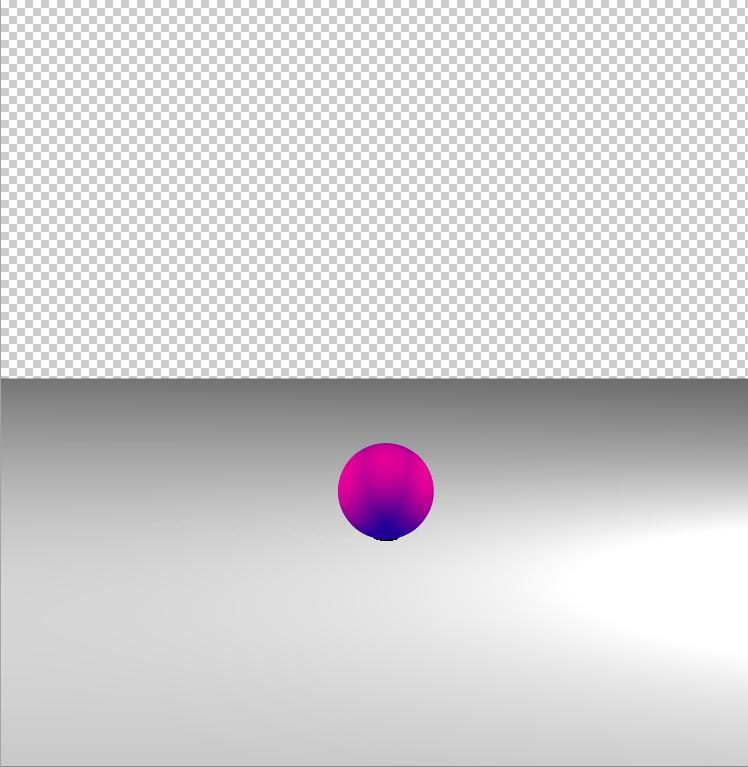
Exposure correction is available in Poser and Poser Pro, as well as in the Vue Artist range (Esprit, Studio and Complete) and in the Vue Pro versions xStream and Infinite. Its basic purpose is to adjust the brightness of the image in a way similar to the effect of widening lens diaphragm opening or of prolonged exposure time on classical celluloid film. It helps to make your image look like a photograph.
Gamma Correction is available in Poser Pro, and the in Vue Pro versions, and to a limited extend in the Vue Artist range. Its basic purpose is to adjust the image for better viewing on monitors and in print, to some extent to correct as well for the shortcomings of non-realistic lighting in 3D (more in Poser than Vue) and to make the image a bit more comfortable for the human eye.

Both corrections are somewhat similar, but are independent as well so they can be mixed, or not applied at all. They all are techniques, not religions. Use them knowledgably, with care, and with awareness of artifacts, limitations, pro’s and con’s. This articles aims to help you with that.

At first I’ll discuss the need for corrections at all, and how to make them in post. Then I’ll look in more detail to Exposure Correction as well as Gamma Correction, both to be applied after the rendering process.

At second, I’ll note that Gamma Correction comes with a companion: Anti Gamma Correction, applied before the rendering. This appears to be a tricky process with lots of side effects and artifacts. I’ll discuss these for Poser and for Vue.

Corrections (2 Do I Need …)

Do I need corrections?

Exposure and Gamma Correction, as well as any other correction, can be applied in post using Photoshop or GIMP or alike. You render, export the result and apply the adjustments to your liking. Applying Exposure or Gamma Correction within the Poser, Vue or other 3D application itself is different however, since you render, apply the adjustment and then export after that.
The difference is that the applications internally work in high resolution mode (HDRI, 16 or even 32 bits per color) while most exported results like JPG, PNG etc. use low (8 bits per color) resolution. Therefore, the correction is applied to the high resolution internal result – when the details are still there – instead of to the low resolution – when the details might have gone already, and have nothing left to correct.

So, next to make the image look good, there is a technical reason for applying the corrections within Poser or Vue: saving the details, especially in the dark areas of the image. And then, in post, you can take the corrections out again as the first step, process as if no corrections were applied at all but still with all details available. For this purpose, Gamma Correction is just more powerful then Exposure, and other corrections are just not available within the 3D program. Even Gamma Correction is not always available, like in Poser. Then Exposure Correction is your only option.

Why not?

The argument above also yields a reason NOT to do all this, or even to do the inverse: when saving the details in the darks, you will lose the details in the brights. This is relevant in images with massive cloud nuances in the sky, like in Vue. With respect to that, it has to be considered that our eyes are far more sensitive to details in the dark than to details in the brights. So lack of bright details is less relevant in our appreciation of the image than the presence of dark details.
This of course has a simple evolutionary background: all we can eat, or all which can eat us, was hidden in the woods and in the shades while far less opportunities and threats came from the sky. It’s ancient history especially since we all put a small light in our fridge J to avoid getting our food from the dark places, but it still plays important roles in our abilities to see and to appreciate details in our images. Details in the dark are preferred over details in the bright.

In Photoshop

Whatever your decisions are, it’s good to understand how to perform the corrections in post anyway.
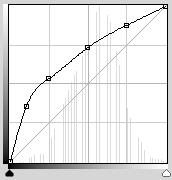
For applying a Gamma=2,2 correction in Photoshop, just perform a Curve adjustment passing through

  • (0,0)
  • (10%, 35%)    = (26,90)
  • (25%, 53%)    = (63,136)
  • (50%,73%)    = (127,187)
  • (75%, 88%)    = (191,224) and
  • (100%,100%)    = (255,255).

As you can see there is a major effect in the dark areas (left, increased brightness in the first 25%) which is compensated by a reduced contrast (about linear but less slope) in the remaining 75%.

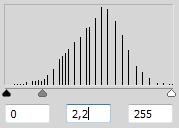
Or you perform a Levels adjustment, and move the middle sliderpointer (to the left) till the midvalue reads 2,20. Or just set the value. This is less accurate, it compares to a curve with only the 50% point set. As a result, it corrects only half as much in the dark areas. Or: it seems more an Exposure Correction to me.

Engineering stuff

For those people who like the juicy details, let’s look at some very dark (and so: very low) brightness levels.

Brightness (*) RGB 16bit RGB 8bit Gamma Corr RGB 8bit
0,00% 0,0,0 0,0,0 0,00% 0,0,0
0,22% 256,0,0 1,0,0 6,37% 28,0,0
0,32% 256,256,0 1,1,0 7,54% 23,23,0
0,39% 256,256,256 1,1,1 8,24% 21,21,21
0,45% 512,0,0 2,0,0 8,79% 39,0,0
(*) there are a lot of definitions for Brightness, based on human eye response, camera / film response, monitor behavior, paint / ink behavior, optical science, fast-to-calculate algorithms etc. In this article I use: B = square root ( (R2 + G2 + B2)/3 )

Next to 0% brightness, the 0,22% is the lowest level that can be produced in 8-bit per color RGB using RGB=1,0,0 (same for Green 0,1,0 or Blue 0,0,1), hence this pick.
Within Poser this brightness matches (256,0,0) in the internal 16-bit per color space. That gives plenty of nuances at a lower brightness level, but all those details disappear when this pixel is converted to 8-bit color and (1,0,0) becomes the only choice available.

Now, the pixel is Gamma Corrected first. This will shift its brightness from 0,22% to 6,37% so the export to 8-bit format will result in a pixel reading (28,0,0) which has a decent amount of lower brightness levels to represent the nuances. So, a 16-bit per color image with hundreds of brightness nuances between black and very dark either gets exported to an 8-bit image with only 2 brightness levels available (0 and 1), or – after internal Gamma Correction – to an 8-bit image with tens of nuances available. That’s a gain.

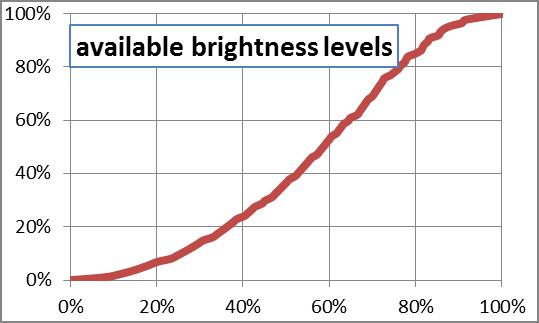
To show that this “quantization”, the effect of expressing color values in numbers only, especially harms the darks, I plotted the brightness itself against the percentage of brightness levels with a lower value:

  • At 20% brightness only 6% of the available levels have a lower value, which means that especially the darks have a serious shortage in expressing details.
  • At 80% brightness, about 85%% of the available levels have a lower value, hence 15% has a higher value. So for expressing details in the upper 20% of the brights there are 2,5 times as much nuances available as for expressing details in the lower 20% of the darks.
  • In the midtones, covering the60% range from 20% to 80% brightness, we’ve got 85% -/- 6% = about 80% of all brightness levels available for expressing nuances. Life isn’t fair.

This again demonstrates that details in the dark are somewhat of an issue in 8 bit per color imaging. One way out is going HDRI all the way. Another way out is applying in-program correction before export. In that case, when there is a choice, the method with the most attention to the darks is preferred. This method is Gamma Correction.

Does it work out?

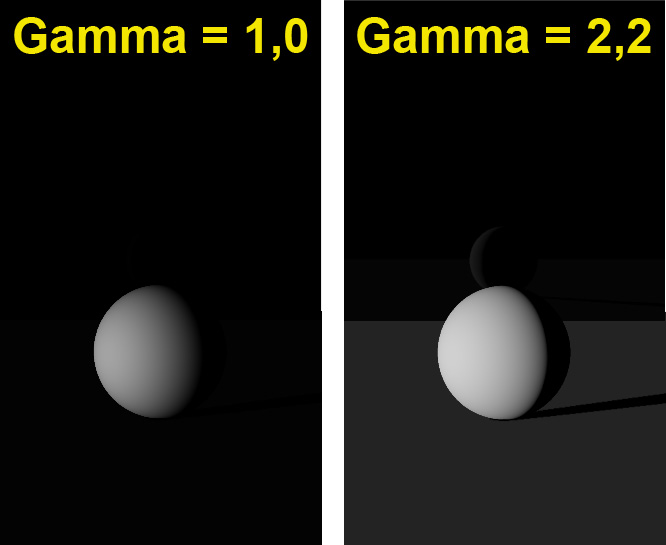
Watch this (scene concept by Bagginsbill):

This scene shows a white ball on a white floor, lit from aside. At the back there is a black plane, which has a 2% reflectivity (is: water). As a result, full 100% white will produce a 2% brightness on reflection but as the backside of the ball is reflected, the mirror image will be an exercise in dark tones.

Without gamma (left) not only the image appears rather dark, but there are no brightness values left for the reflection. The brightness measures will be physically correct aka linear, though. With gamma (right) the image reveals what our eyes would see under those conditions. Although the image is far from linear, having the details at hand will be a great help in further processing.

Pumping up the brightness in especially the very dark levels, right from the original 16 bit-per-color result, is what will save the details. This makes in-program postworking before export superior over postworking after export of the image. This is why we need gamma or exposure correction in-program, whether it results in something pleasing for the eye, or not. We can take care of the latter in Photoshop, but at least we’ve saved the details to do so.

Corrections reconsidered

In my attempt to get an image on my display that resembles the original object and its textures for the best, and to create a believable (photoreal) 3D Poser or Vue render from it, I have to consider various issues.

  • Real lights have a volume, and produce light in a spatial distribution. 3D lights are like points and therefor produce harsh shadows. Some renderers can assign spatial light distribution to them, but Poser nor Vue can do so.
  • Real light progresses through the atmosphere, though the air we breathe, which is filled with damp and dust. This makes the light scatter all around. Some renderers can handle this, but especially Poser only can approximate those effects by using IDL (Indirect Lighting). In this, objects start acting like a (reflecting) like source, so the effects of walls and ceilings and bright colored objects can be considered. When it comes to the softening of shadows, Poser renderers fall short. Vue does its job somewhat better.
  • Real materials behavior is pretty complex. Specular and reflection are different faces of the same coin, diffusion and refraction meet in translucency and transparency, reflection and refraction are closely related phenomena and so on. But in the Poser and Vue materials those aspects are dealt with separately, while something relevant as surface smoothness is left out (at least as a direct controllable parameter).
  • And so on

In other words, the renderer is far from perfect, at the gain of speed and reasonable resource requirements. Exposure as well as Gamma Correction, softening the highlights, reducing overlight situations, and (for Gamma: especially) softening the shadows do help us to get a more realistic result.

Corrections (3 Exposure)

Exposure correction

Imagine, you take a picture of something and the “film” (an electronic one in the backplane of your camera nowadays) gets exposed for 1/100 of a second. Some parts of the film remain dark, others become bright already.
Now, let’s double the exposure time to 2/100.
During the first 1/100, in a very dark spot, the film was exposed for say 5%, and was still unexposed for the remaining 95%. That remaining 95% will again be exposed for another 5% in the second 1/100 and it’s quite safe to say that this will result in a 5% existing + 5% added = 10% exposed spot in the film. Hence, in the very dark areas the brightness of the image will be proportional to the exposure.
For a – say 90% exposed – bright spot after the first 1/100, things are different. In the second 1/100 only the remaining 10% will be exposed 90% again, but that will add only 10% x 90% = 9% to the already present 90%, to make 99% after doubling the exposure time.

So by increasing the exposure, the darks are – relatively – far more affected than the brights.

In Poser and Vue

Both programs have the ability to apply Exposure Correction in post. This is to be preferred over a similar action in Photoshop, because in the programs themselves the correction is applied against the internally stored 48-bit (16 red, 16 green, 16 blue) render result, when all details all still available, before exporting it. Especially exporting to a regular 8-bit color image format will lose detail in either the darks (shadows) or the brights (clouds). Exporting to HDR, EXR of 16-bit TIF might save the day. Note that Photoshop opens the Poser EXR images as 32-bit per color files.

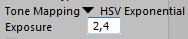
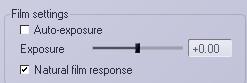
In Poser, there is no alternative (except from buying Poser Pro). Check the Render Settings:

My advice is to take a medium value between 2 and 3, because

  • A value over 2 brings up enough details in the darks
  • A value below 3 prevents losing all details in the brights

Then, after export – in post, you can adjust the difference between your export and the final gamma/exposure correction.

In Vue, you can adjust the Advanced Camera Settings (double-click the camera object). Vue offers Gamma Correction as an alternative.

Exposure value

There are different ways to express Exposure, which leads to different interpretations of values like 2, 4, 0.5, -3 and so on.

One way expresses Exposure as the lengthening (or shortening) of exposure time. The value 2 means: twice as long, two times as much light into the camera. The opposite of 2 is: one half (0.5). The neutral – do-nothing – value is: 1. This is the way exposure is used in Poser.

Another way to express Exposure is in extra diaphragm stops. One extra stop (value: 1) doubles the lens opening, and so the light into the camera. The opposite is: one stop back (or value: -1). The neutral value is: 0, no extra stops. This is the way exposure is used in Vue.

Hence:

Poser: 1/16 1/8 1/4 1/2 1 2 4 8 16
Vue: -4 -3 -2 -1 0 1 2 3 4

Engineering stuff

Some people like the unambiguity of formulas and graphs over texts and words. So:

After correction = 1 – (1- Before) Exposure

in which the Poser (exposure time) use of Exposure is used, as I will do in this entire article.

Having exposure A followed by exposure B:

After correction = 1 – (1- Before) A*B

which says that exposing something twice as long, followed by exposing three times as long gives the effect of exposing six times as long. No real magic here.

And since exposure = 1 yields the neutral, do-nothing effect,

After correction = 1 – (1- Before) 1/Exposure

is the inverse. It says that exposing something twice as long is the opposite of exposing half as long.

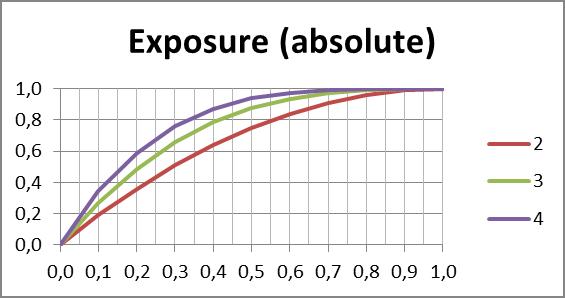
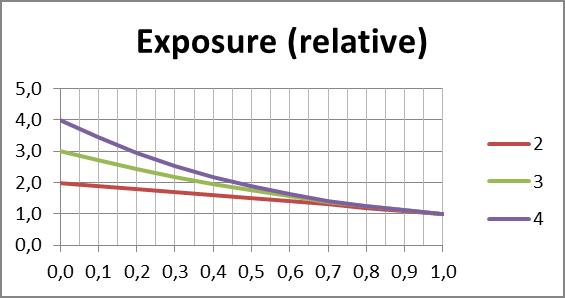
Plotting the exposure curve as such: But when plotting the ratio of after/before:

In which we see that tripling (green line) the exposure time will brighten up the dark areas threefold (0.1 => 0.3 in the left graph) while having hardly any effect on the already bright spots in the image.