Corrections (4 Gamma)

Gamma Correction

Imagine, you shoot a picture with your camera, load it into your PC and – perhaps even as part of your routine, you adjust the whitepoint, the blackpoint and the greypoint. In Photoshop Levels Adjustment or Curves Adjustment there are even straightforward colorpickers to do so. This image can be used for a texture in your 3D program, like Poser of Vue.
Alternatively, you paint a texture image and use the colorpicker values or colorwheel settings to get the right colors. RGB (63,0,0) or HSV (0,100%,25%) for instance might give you the proper dark red.

Now you just view it directly, or view the result your render created with this texture, or send any of it to print. Bets are that you will find the result rather overly dark, especially in the shadowy or low-brightness spots but in the midtones too. This is due to your monitor, which for various technical and historical reasons has an embedded brightness distortion known as the “gamma effect”. Nowadays, almost all displaying and printing equipment shows this distortion in a standardized way. This standard is known as sRGB.

The compensation for this effect is known as “Gamma Correction”. When applied to an image, it especially brightens the darks a lot and the midtones a bit too, and you get the image displayed or printed as it was intended. In order to get the correction out of the image, “Anti Gamma Correction” has to be applied. Actually, this is what your monitor does when displaying. The actual value (gamma) for modern equipment is: 2.2. The neutral – do-nothing – value is 1.

To Gamma or to Expose

When you are concerned about the brights in your image, you want to handle the risk of over-lighting, or you want to emulate natural film response, then Exposure Correction is the proper tool.
When you are concerned about the darks in your image, and want to handle the risk of losing detail and getting overly hard shadows, and/or you want to export the image with a minimum loss of detail, then Gamma Correction is the best pick. That is: when it’s available in the software. And of course you can do a bit of both.

In practice, Gamma Correction is not always available, and when it is, it comes with a stack of side effects. These will be discussed in later chapters in this article. But as discussed in an earlier chapter (Do I Need Corrections), not correcting has its drawbacks as well. Your image, your call.

Engineering stuff

For those who like formulas and curves, the formula for the gamma effect (the behavior of your monitor), and hence for the Anti Gamma Correction, simply reads

After correction = (Before correction) Gamma

And since the neutral – do-nothing – value equals 1, the inverse or Gamma Correction (right image) itself reads

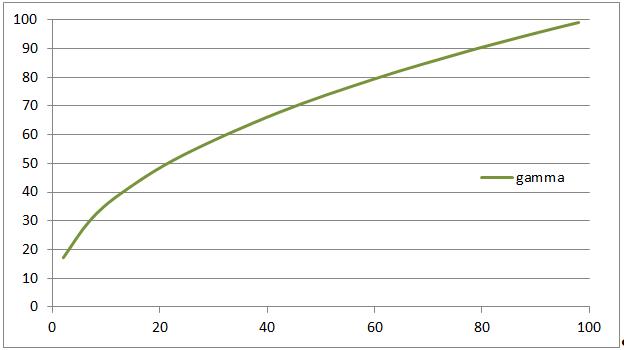
After correction = (Before correction) 1 / Gamma

Formally the sRGB standard which your monitor is supposed to adhere to is slightly different, and especially a bit less aggressive in the very darks. But gamma = 2.2 is a good approximation, and a pure sRGB correction is not available within the software anyway.

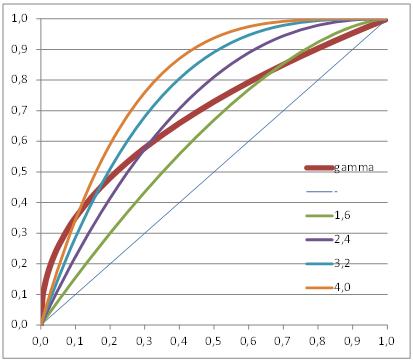
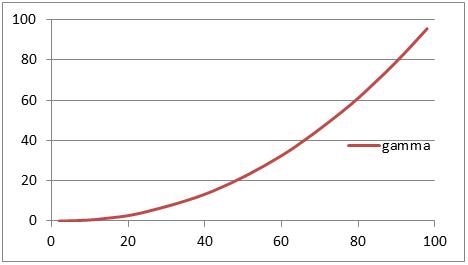
Graphs are a handy way to show the differences between Gamma Correction (set to 2.2) and Exposure Correction (various values).

Exposure Correction (compared to Gamma Correction)

As you can see, the Exposure Correction using 1.6 (Poser very bright part of the image. And Gamma Correction wins from every meaningful Exposure Correction when applied upon the darkest details of the image.

Gamma / Exposure Correction and the Human Eye

The ‘monitor’ which was not discussed yet, is the human eye. Our eye is a dynamic device, which adapts in various ways when looking to dark or bright areas. Varying pupil width is one way, but the light receptors and the signal processing in our brain have some more tools in reserve. Let’s concentrate on scene brightness.

From astronomy, star brightness is divided in classes or magnitudes. This was introduced by the ancient Greek (Hipparchus, 120BC), and refined when Norman Pogson stated that a “first magnitude” star is 100 times as bright as a “sixth magnitude” one. This implies that

Brightness = (2,512) Magnitude

give or take some constants, as 2.512 (6-1) = 100. Now, let’s compare the eye with Gamma or Exposure Correction.

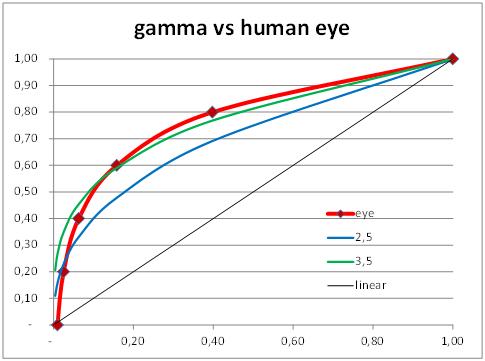
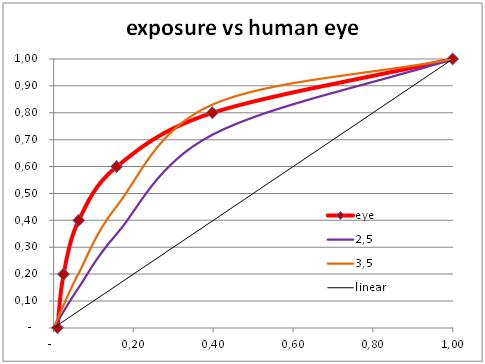
Just from the graphs (next page) we’ll find that Gamma curves (left) are far more comparable to the human eye behavior than exposure curves (right). Why does it matter? Well, when we look into a real scene our pupils adjust when we focus on specific areas. Usually the darker areas are farther away than the bright ones. But when we look at an image of that scene, on display or paper, the dark and bright areas are at the same distance. Focusing will be much harder, and our pupils will not, or far less, respond to brightness differences. Therefore, our eyes appreciate some help.

And as we can see from the graphs, and can experience by experimenting, Exposure Correction is a decent step forward compared to nothing (linear), but Gamma Correction is by far superior as it is more helpful in the darks.

From psychology, or better: from our evolution, humans are more curious about (or afraid for) the darks. This determines the workings of our brain. Each step in brightness magnitude should offer equal amounts of detail, for a comfortable feeling. In other words: overshooting the darks is less troublesome than undershooting, and vice versa for the brights.

This is why gamma correction is more pleasing than exposure correction. See the gamma=3,5 curve (left graph, green line) which offers a minor overshoot in the darks as well as a minor undershoot in the brights. This is what we appreciate. We feel more comfortable with it.
The exposure=3,5 curve (right graph, orange line) on the contrary shows a mild overshoot in the brights against a serious undershoot in the darks. This is what we like less. Exposure corrected imaged show more resemblance to a photograph, as it mimics film behavior. Gamma correction helps the eye and gives a more comfortable feeling. Your image, your call.

Corrections (5 Anti Gamma)

Anti Gamma Correction

Exposure Correction as well as Gamma Correction are straightforward, well defined adjustments of the render result. So far so good. Only … Exposure Correction just comes as such while Gamma Correction (GC) in Poser and Vue is the final part of a tandem. The first part of that tandem is the application of Anti Gamma Correction (AGC) on the definitions of lights, colors and materials before rendering. This part is far less understood, Poser and Vue perform it differently, and it comes with a shipload of artifacts.

The reason for applying AGC at all is the following. First the texture is anti-corrected, then the rendering adds highlights, shading and shadows. Then the result is corrected. In the end, the highlights, shading and shadows come out corrected (that is: softened), while the texture itself remains more or less intact.

But:

  • In Vue, external image-maps are anti-corrected but internal color swatches are not. So an object colored from an image-map and an object colored from an internal color that look similar without using GC, come out differently when GC is applied. Of course all internal colors can be adjusted and Vue provides proper tools for that, but then the reverse will happen: they will behave similar under GC but different when GC is not applied.
    The details are presented in the Vue chapters (part I, part II).
  • In Poser, external image-maps and all internal color swatches are anti-corrected, but color values are not. So an object with (50%,0,0) in the colorswatch and 100% in the value will come out different from an object with (100%,0,0) in the colorswatch and 50% in the value, when GC is applied (PoserPro) – and will come out similar when GC is not applied (Poser). And there is more to be concerned about.
    The details are presented in the Poser Pro chapters (part I, part II).

Corrections (6 Poser Pro pt I)

Gamma Correction in Poser Pro

Gamma Correction in Poser Pro is not implemented as just a post-effect only, applied onto the resulting render, as is the case with its Exposure Correction. The trick is that before rendering starts, all textures and color swatches as used in the materials (*) are anti-corrected first. So, colors are darkened, then everything is rendered, lights, shadows, reflections, refractions, indirect lighting and so on are applied, and then the resulting render is gamma corrected.
(*) Materials as in: manageable through the Materials Room. This affects object surfaces, background, lights and atmosphere.

This has the following net effect:

  • All brightness distributions of the textures applied to objects end up intact
  • While all brightness effects resulting from the play of light (shadows, reflections, …) end up gamma corrected.

Let’s see what this brings us.

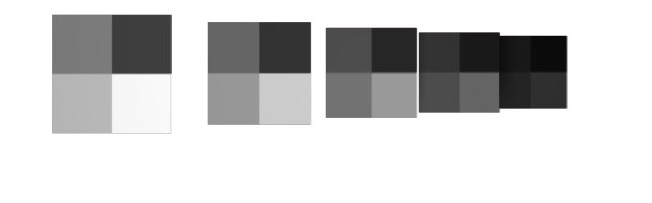
No Corrections (gamma off):

This image is the result of 5 tiles, each having a grey texture at 100% / 75% / 50% / 25% brightness, provided as a diffuse map. Light comes from a single spotlight, full white, flaps open (no angular falloff) and a linear intensity falloff from 5 to 10 mtr. The first tile (Left) is at 5 mtr, then 6, 7, 8 and 9 mtr distance. So, without any corrections, we expect each 100% bright area on the tile (bottom right) to measure as 100 – 80 – 60 – 40 – 20% grey, and so they do. We also expect the brightness proportions per tile to stay intact, so the first reads 100/75/50/25 and the fourth read 40/30/20/10% grey. And so they do.

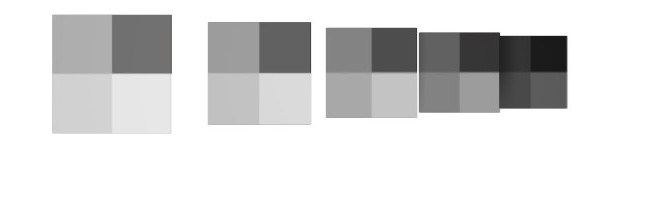
Now, consider the same with Exposure Correction switched on, at 2,4 which also gives a result somewhat comparable to a post-work gamma correction of 2.2.

Now the brightest bottom-right parts of each tile read: 91 / 85 / 76 / 61 / 36. So the dark ones at the back have gained at the cost of the bright ones upfront. But also the ratios per tile have changed, from 91 – 82 – 68 – 44 on the front tile till 61 / 51 / 38 / 21 on the fourth one. Or in percentages: 100 – 90 – 75 – 48 at the front, 100 – 84 – 62 – 34 at the back.

In other words, not only does the back tile gets less light, which is exaggerated by the correction. The correction also affects the brightness distribution within the textures themselves and makes them look different from their original.

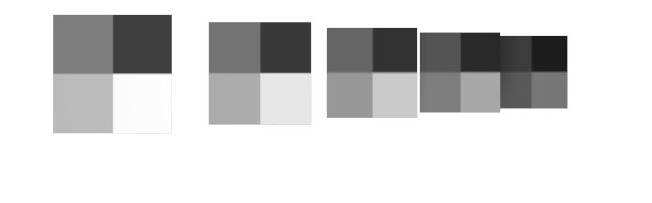
Poser Pro Gamma Correction however behaves different from Exposure Correction or post-work Gamma Correction:

As can be expected, the brightest parts of each tile are distorted relative to the original uncorrected image: 99 / 90 / 79 / 65 / 46. This is what gamma Correction does to the play of light, where the falloff darkens the tiles further away.
But per tile, the distribution has stayed intact, as again we see on the fourth (and any other) tile: 65 / 49 / 33 / 16 (or: 64 / 48 / 32/ 16) is still in sync with the original 100/75/50/25 ratio in the texture.

Hence again:

  • While all brightness distributions resulting from the play of light (shadows, reflections, …) are gamma corrected – as other correction techniques do too
  • All brightness distributions on the materials applied to objects are kept intact – which is new. In other words: the final output will be only as distorted as the textures and colors used for input.

The interesting thing in here is that the pre-render anti-gamma correction is not only applied to textures, but to color swatches (and hence the generated, procedural maps) as well. When the reds of a texture and a color swatch are in sync (say: in Poser, or in PoserPro without GC), they stay that way (in Poser Pro, with GC). That’s good.

Corrections (7 Poser Pro pt II)

Poser Pro Gamma Correction reconsidered

So enabling Gamma Correction in Poser Pro is “the thing to do”? Yes, with some precautions.

Textures which should not be corrected

Simply stated, textures which contribute to the color of the result should be corrected back, and forth. But textures which contribute to the amount something happens, the values, should not be corrected.

So if this texture is used in:

  • Diffuse Color & Value
  • Specular Color & Value
  • Ambient Color & Value
  • Translucence Color & Value
  • Reflection / Refraction Color & Value
  • Alternate Diffuse / Specular – both Color & Value parts

check “Use Gamma from Render Settings”, which is the default.

And if the texture is used in

  • Specular Highlight Size
  • Transparency, Edge and Falloff
  • Bump, Displacement, Gradient_Bump

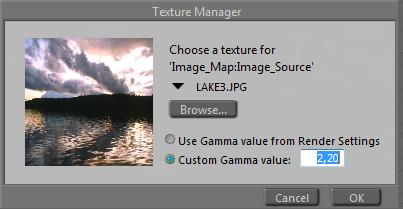
set the Custom Gamma value to 1,00. In the Wacros, button UserDefined, or menu Scripts, MaterialMods, you’ve got a “changeGamma” routine. Enter 1,0 for Gamma, select All props and figures, and find out that this routine works on Bump, Displacement, Gradient_Bump and Transparancy. On the other material aspects mentioned this has to be set by hand, although using image-maps in these cases is pretty rare.

But things can get complicated. All color swatches are dealt with automatically (against the Render gamma value). But numerically derived colors, e.g. when using the “UserDefined’ node in Materials Room, are not. And (greyscale) color swatches which are used to communicate value are corrected when you don’t want them to. And mixtures of everything (e.g. resulting from Bagginsbill great VSS node system or his MatMatic materials generator, or Snarlygribbly’s EZSkin) do require close examination. Such an examination is discussed below.

Textures which should be corrected differently

The Custom Gamma Value in the Texture Manager usually is used to state that for this texture gamma should be one, or: not part of the correction process. Inputting the same value as used for Render Gamma makes it equivalent to Use Gamma from Render Settings, the default for textures and the standard for all color swatches. But how about using something different?

When a texture is too bright or too dark, you can correct for it in Photoshop, but you can also treat the image as the result of an image handling process under an incorrect gamma value. If it’s too bright, put in a higher gamma value to take the extra light out. And vice versa, when it’s too dark, put in a lower gamma value to prevent the light taken out too much.
1.8 comes to mind, compensating for the old Mac system / hardware monitor gamma.

Remember, the texture gets the gamma function applied in the first place: it will be darkened. Then it will be used in the rendering, then the total result including the effects of light and shadow will be brightened. This will sort of undo the darkening, and effectively limits the effect of gamma correction to the lighting and shadowing effects.

Materials which are handled incorrectly

This is the story of a well-known Poser material – the Vicky 4 out-of-the-box natural skin & body texture (sample, standard or high resolution, with or without genitals), which suffers under the effects of the Poser Pro Gamma Correction.

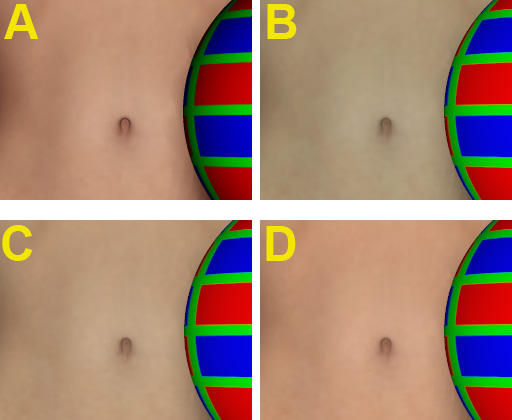
The figure shows Vicky (with a red green blue ball), in the out-of-the-box texture, rendered with Gamma Correction = 1 (A), the equivalent of a normal (non-Pro) Poser render. Looks good, just slightly reddish.

B is the Poser Pro render result of exactly the same Vicky, Gamma Correction set to 2,20. All natural looks have gone, Vicky is turned into some vampire / zombie crossover.

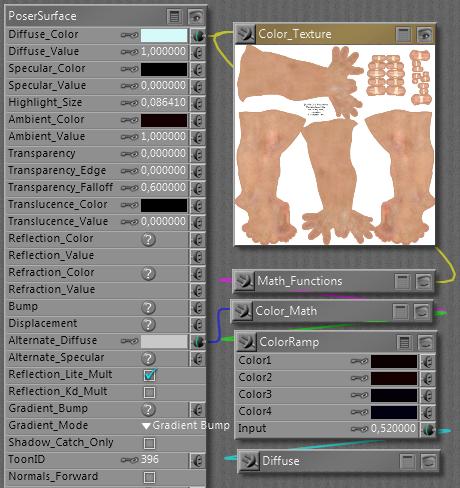
How come? Let’s have a look at the material definition:

I’ll come to the cyanic Diffuse_Color later, and have a look at Ambient first. It’s fully switched ON with a value of 1, and when the color swatch is opened is reveals a 20/0/0 color, or: 8% red. So the Ambient will cause a mild red glow over the body, creating the translucent skin impression without the costs of Translucency itself.

Then, the Alternate Diffuse. It looks intimidating but actually the Diffuse node generates exactly the same light-fall-off as the normal Diffuse Color/Value channels in the material itself, and the Math_Function and Color_Math don’t do anything else but multiplying the texture map, turned to greyscale first. The ColorRamp creates an additional tinting, as the swatches go from deep red (10/0/0) via a slightly brighter red (20/0/0) via deep purple (4/0/8) to deep blue (20/0/0), in the end multiplied by about 80% grey in the Alt_Diffuse colorswatch itself.

In other words, the Ambient channel adds a 8% red glow while the Alt_diffuse adds another say 6% red/purple/blue shine. Therefore, we’ll have to take out about 14% of the reds in the Diffuse channel itself, for compensation. This is exactly what is accomplished by the cyanic 214/249/249 = 86% red / 3% grey color setting – the latter compensating for the glow itself as well.

When Gamma Correction is applied to this material, not only the texture but also the color swatches are darkened first (anti-corrected), before the final result is brightened up (gamma corrected) in post-render. Unfortunately, this initial darkening is not a linear process as we’ve seen from the curves. So, the dark swatches introducing the additional skin tones in Ambient and Alt_Diffuse are treated different from the bright cyan and bright grey in Diffuse and Alt_Diffuse respectively. The darks are darkened more than the lights, the cyan wins the battle, and as a result Vicky’s skin gets this zombie color tone (see A and B in the image above).

For a solution, you have to alter all materials in your scene that have this ‘semi translucent sub surface scattering’ setup for skin tones. Just halving the effect of the cyanic swatch (to 235/252/252) produces result C, which to me looks like a step in the right direction. The extreme, using white in the Diffuse Color instead, produces result D. To me it gives a bit too red impression. Perhaps setting the Diffuse Color to something in between or setting the Diffuse Color to C plus changing the Alt_Diffuse from 80% to 90% might give the best results. Things might be slightly different for Asian, African, etc skin tones. Your call, your image.

This example just shows how sophisticated material setups can get distorted by Gamma Correction, especially compensation mechanisms (aka Color Math) might go wrong.

Next to that, those “advanced” materials have problems when being translated to other programs. Like Daz Studio which has no Alt_Diffuse (and so: missing half of the red tone showing a C-like result in its renders) or LuxRender where Ambient has to be switched off too in order to avoid Vicky to behave like a lamp. But that’s something entirely different. Well, not completely, as the issue discussed here was the result of translating a Vicky scene from Poser to Poser Pro.

More examples

Gamma Correction can interfere with sophisticated material setups. Some people create such setups in Poser (without gamma) and then find out they don’t behave well in PoserPro, using GC. Then they blame GC for it, instead of slapping themselves for creating something without taking GC into account properly. Duh!

For you and me, using those setups and not really willing to make structural adjustments ourselves, the question is to find the proper dials to turn in order to straighten things up a bit. Essentially: dark color swatches will loose their effect when CG is switched on.

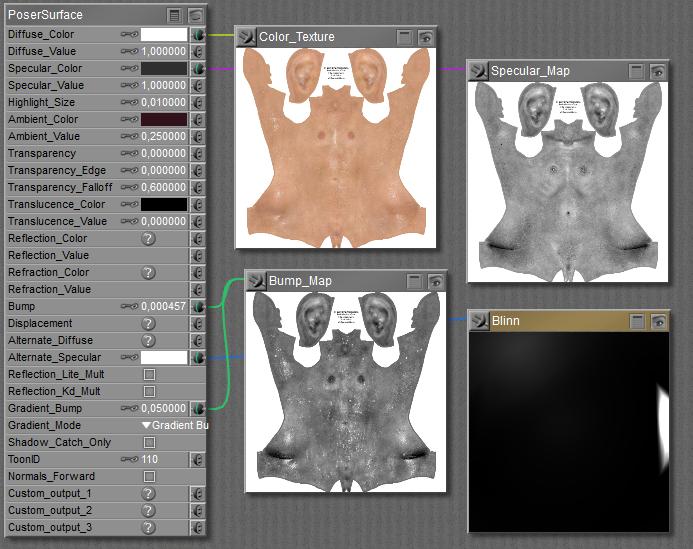
So let’s find out what we can expect from Vicky’s Wet Skin as it comes with the package.

Diffuse takes the texture with a white color swatch, as does the Alt_Specular takes the Blinn shader. White will stay white uder GC so both will pass unaffected.
But Specular takes the map with an 18% grey in the swatch, while the Ambient color contains a 13% red. Both will get reduced severely, and therefore the GC body of Vicky will show less shiny and less red than the non-corrected one.

Actually, I can restore the situation by boosting the 18% grey to 50% and the 13% red to 40%. I’m gamma correcting them by hand, I cannot do it otherwise.

The headache scenario

The Anti Gamma Correction in Poser does affect texture maps and color swatches, but not the values and the math. Let’s find out what that brings us. Roughly, it brings me a load of puzzles on how to build a proper node tree in the Materials Room.

Distorted additions

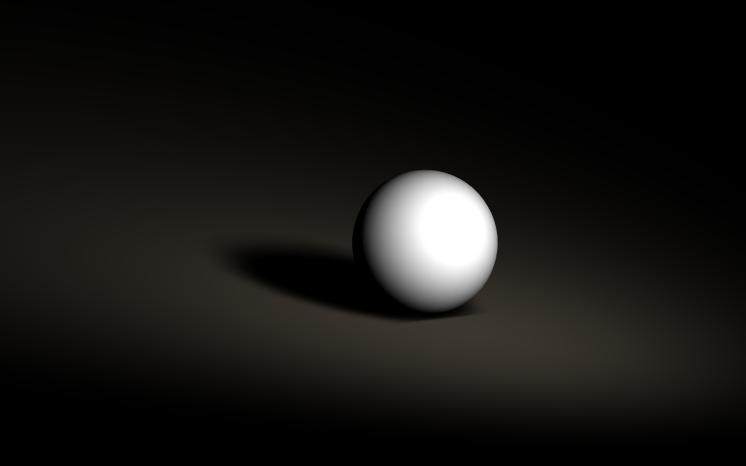
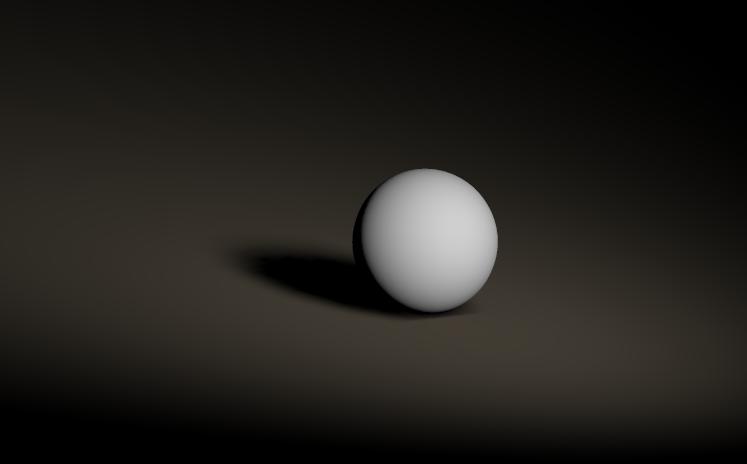
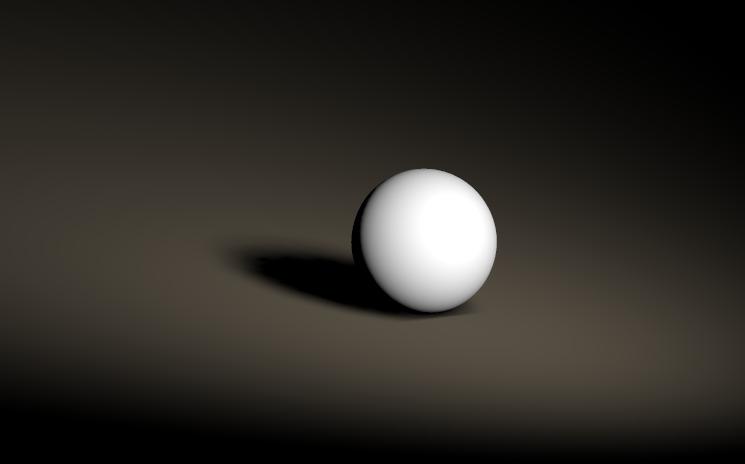
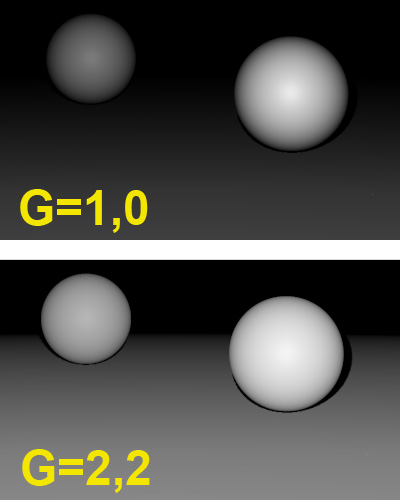
In Poser, the effects of lights are simply added up. Two lights at 60% each make a 120% light. This results in an overlighting situation, the render is clipped at 100% and all nuances get lost. But applying Gamma Correction makes a difference. The 60% is Anti Gamma Corrected into 32,5%, so two lights make 65% together, which then is Gamma Corrected to 83%. And now the entire clipping effect is gone! (Note: the ball has Diffuse only, no Specular)

Without Gamma Correction, 2 * 60% light 2 * 60% light with Gamma Correction

Personally, I like the second one far better as clipping is an artifact. But my bottom line here is that Gamma Correction is not just an adjustment of the render result, as can be derived in post as well. Thanks to Anti Gamma Correction, you really get a different image.

This not only holds for adding lights, it also holds for adding Specular to Diffuse, and to adding other channels as well (Ambient, Reflection, …). Gamma Correction is fine as it can be done in post as well. But it comes with Anti Gamma Correction sandwiching the rendering, and that really alters the result. Your image, your call.

Distorted multiplications

Poser Anti Gamma Correction does work on textures and color swatches, for surfaces, lights and more, but does not work on values. As a result, just in the simple case discussed above with two lights at 60%, I get different results depending on whether I put 60% in the intensity (value) or as a grey hue in the color swatch:

with CG, 100% white, 60% intensity with CG, 60% white, 100% intensity

So you still experience the overlighting and clipping in the left image, also it doesn’t show that much thanks to the brightening of the Gamma Correction in its near environment. By putting the light intensity in the color swatch instead of in the numericals, you do get the better image. This holds in all cases of the Material Room.

Distorted color for value

So it does matter whether I use a reduced value instead of a darkened colorswatch?
Yes, the first will result in a brighter result with the risk of clipping and stronger brightness contrasts, like brighter highlights and deeper shadows. Just because it is not reduced beforehand by the Anti Gamma Correction.

And if I use a texture or a color-constant instead of a value (like plugging a greyed colornode into a value of 1)?
Then that’s like an adjusted colorswatch, as all swatches and textures are affected by the Anti Gamma Correction.

What is best?
For those channels which ought to be affected by Anti Gamma Correction (that’s about everything except Bump, Displacement, Transparence and the like), you’d better leave the values at 1 and use a swatch or texture for the nuances.

Is there a difference between using two similar lights at the same place, or just doubling the intensity value?
No. This is exactly why the Anti Gamma Correction leaves the numericals alone. Otherwise the result of Poser Gamma Correction would become completely unpredictable.

How do I deal with the complex node-constructions that can be found in Alternate_Diffuse and Alternate_Specular?
You’ve got to analyze them in detail, or trust the constructor for having done so. The best construction takes sets all Image Gamma to 1 and puts in a Gamma node just before the Alternate input connector. But one should be aware that all color swatches always go against the Render Gamma setting.

Can the Anti Gamma handling of colorswatches be avoided?
All color swatches always go against the Render Gamma setting, but one can use the User_Defined node which uses numericals to generate a color, and is therefore immune to the Anti Gamma Correction.

What about Refraction?
Value and color determine the color of the refractive, or: transparent material. Like in all similar cases, you’d better make dark green glass by choosing a dark green color, instead of a green color and a low value.
The amount of refraction, the optical effect of bending light when it passes through an object, is determined by the Index of refraction (IOR) in the Refract node. This is not affected by Gamma Correction.

And Reflection?
Well, I can use either the Refract node or (in P9/PP2012) the Fresnel node. The latter is meant for transparent reflective materials, like glass, and the reflectivity is derived from the index of refraction. Note that using a color swatch or refraction value not only will alter the refraction, but the reflection too. Usually, reflections are uncolored.

Metals are the exception to this: they have no other properties than reflection, but when they are bad reflectors they look grey and vice versa (like puter), and when they are just relatively worse in reflecting bluish colors they appear yellow to reddish, like gold and copper.

Again, don’t put the reflectivity in the reflection value but combine it into the colorswatch: lower reflectivity implies a darker color. Then the anti-gamma / gamma sandwich around the rendering will result in a proper amount of reflection. When you reduce the value instead, you’ll end up with a far to reflective surface. Which might be great, but not for photorealism. As always, your image, your call.
Corrections (8 Vue pt I)

Gamma Correction in Vue

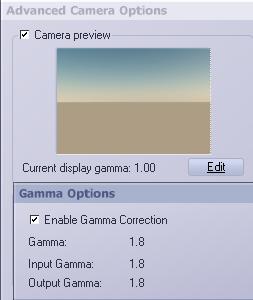
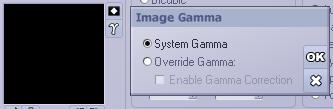
Vue offers Gamma Correction as well. In the Artists products (Esprit, Studio and Compete) it cannot be adjusted, the 1,80 value is the only option and you can either use it, or switch it off. Also, input gamma (anti-correcting the textures) and output gamma (correcting the rendered result) are the same – see image at the right.

Vue will also alter the preview, which turns that part of the display in an almost linear one. But that can be switched off, in Options \ tab Display options:More on the Vue Display Gamma at the end of this chapter.
Note that this affects the preview of Exposure Correction as well.

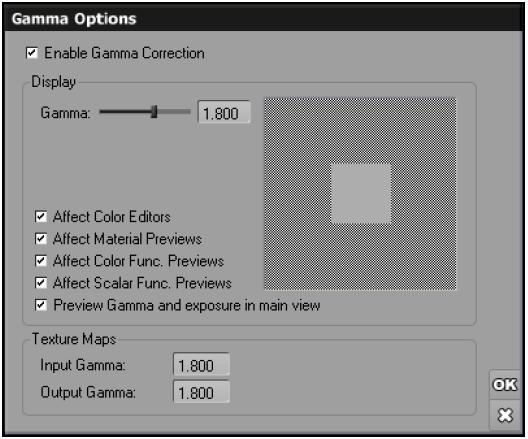
In the Pro products (xStream, Infinite) the display, input and output gamma’s can be set on an individual basis (see image from the manual):

And here too we find the option to switch off the Gamma Correction and Exposure in the main OpenGL preview pane itself.

Of course Vue is aware that Bump, Displacement and Transparency textures should not be anti-corrected. By selecting Override gamma, and unchecking Enable, this can be accomplished.

Corrections (9 Vue pt II)

Vue Gamma Correction reconsidered

The result of Gamma Correction in Vue is interesting:

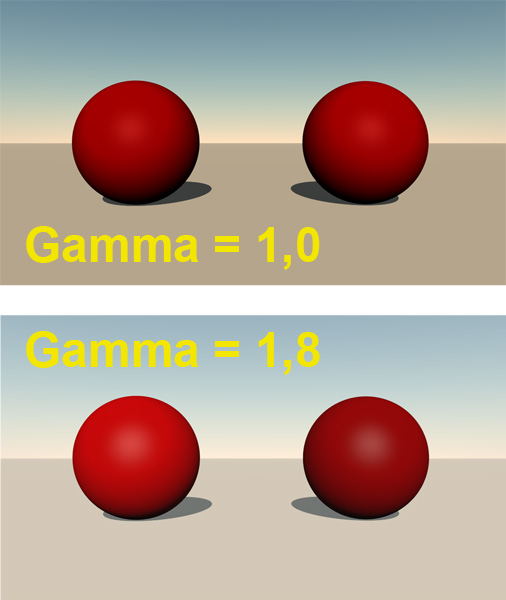
The ball on the left is painted medium red (RGB=127/0/0) with a Vue internal color swatch. The ball on the right is painted medium red also, but by a texture. You can see that both respond different to the gamma settings. When Gamma Correction is switched on (I’m running Vue Complete so I don’t have the advanced control offered in the Pro software), the sky, the ground and the left ball go brighter. They all are driven by internal color swatches. Shadows and highlights brighten up as well. The ball on the right however hardly changes color. It might look as if it darkens since everything else brightens up, but Photoshop measurements reveal that a spot in the middle, somewhat away from the (brightened) highlight, remains as 50% brightness in both images. It also reveals a small drop in saturation which might be due to gamma correction applied to the atmospherics as well.

From this we can conclude that Vue – like Poser Pro – applies Gamma Correction like a sandwich. You’ll get the full brightening from Gamma Correction but you’ll get the Anti Gamma Correction for textures only. Textures and color swatches are not considered equal, the (anti) gamma correction brings external and internal (procedural) textures out of sync.

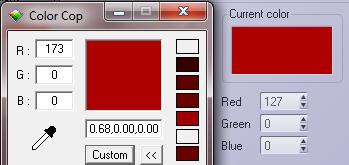
See Color Cop measuring the display while Vue sets the color:

To bring those back in sync, all color swatches have to be adjusted manually. When Gamma Correction is switched on, an internal 50% red (127/0/0) translates to 173/0/0 on screen (and in the rendered result). The other way around, an internal 73/0/0 translates to 127/0/0 on screen, and in the render, and in sync with a 50% red texture map.

But you can save yourself the math and trouble. When the Gamma option is switched on, any texture well be darkened by the Input gamma but you won’t see that because the display of it will get brightened by the Display gamma with the same value. Any color swatch however will get brightened only as the Input gamma (the Anti Gamma Correction) is not working on it. By choosing a color with matches the texture you’re essentially darkening, and gamma applying, the color swatch manually. The Display gamma is doing to the preview what the Output gamma will do to the rendered image.

Note: when in Vue xStream / Infinite the option Affect Color Editors is unchecked, you only will not see the brightened color in the swatch. But you still will have it in your render.

When switching and altering gamma values becomes an issue by itself, it might be a way out to create color functions which include a gamma correction node. The color swatches in the atmospherics editor however are not function driven, these are just simple colors to be set or picked.
On the other hand, when gamma brightens the shadows and highlights, it might be reasonable that it brightens the sky as well. So not altering the swatches makes some sense. Your image, your call.