Case Study: Covering Up (07 Banner and Flags)

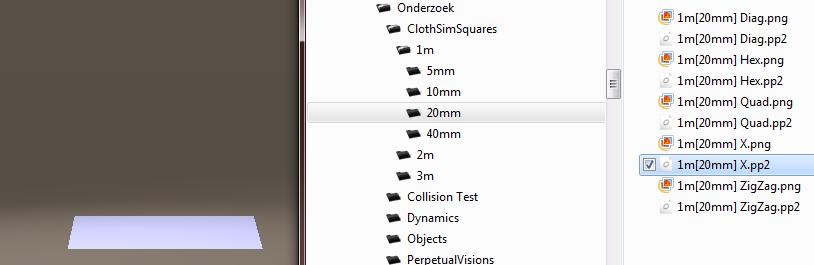
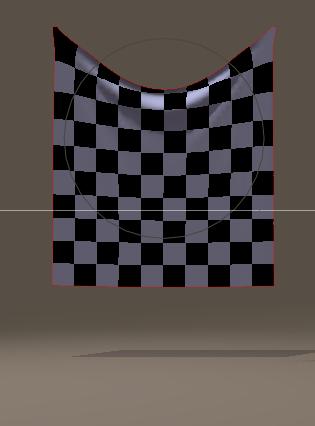
Let me show some basics on banners and flags. First I drag and drop a decent piece of cloth onto an emptied Pose Room:

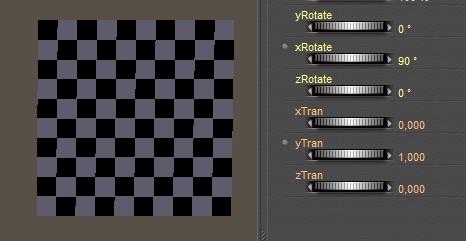
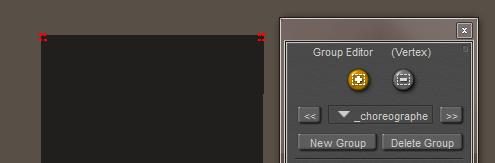
Then I put it in position (xRot=90, yTran=1 mtr) and assign it neat material. After switching to Cloth Room I create a [New Simulation…] (panel 1) and I [Clothify…] (panel 2) the sheet. There is nothing to [Collide Against…] so I can leave that one, I only need to [Edit Choreographed Group…] (panel 3).

I decide just to select to top corner areas:

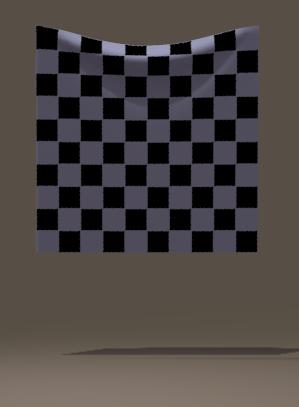
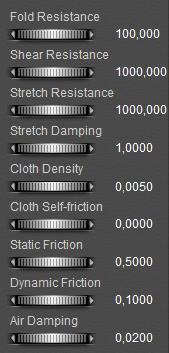
And now I can [Calculate Simulation…] for the first run. Perhaps I like a more flexible banner. I can do that by reducing all the resistances (friction and air damping won’t affect the result anyway). But instead, I can increase the Cloth Density as well, tenfolding to 0.05 for instance. The magic here is that the result is determined by the ratio of <parameter>/density, so reducing all parameters, or just increasing density, have a similar effect.

Variations to this theme are: adding more points to the Choreographed Group, or adding the complete top row of vertices to it. Using only one corner turn the banner into a towel, which I can hang onto a wall or so. And, for a change, I can put both sides into the group, rescale (in Pose Room), and reset the Cloth Density to its original 0.005 :

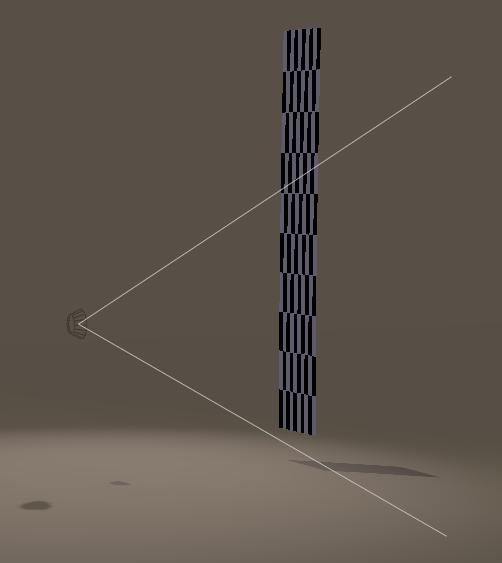
When to cloth continues to wobble up and down, I need more frames (in Simulation Settings, try 90) and/or I have to pump up the Stretch Damping to say 0.1: When banners are hanging outside, the wind will play with them. Let’s see how that works out in Poser. By now, we know how to hang a banner (top row of vertices in the choreographed group) and prepare it for simulation. In panel 4, [Reset] will bring back the default values (except for Stretch Damping, a Poser bug still not fixed in P9/PP2012 SR2. It’s not you). I can make a test simulation if I want to, to check the effects of the settings. Now (in pose Room) I rotate the camera a bit to get some side view, and by menu Object > Create Wind Force I add a ventilator. Using the various camera position (Front, Aux, …) I position the ventilator somewhat at the bottom half of the banner. I also set the parameters:

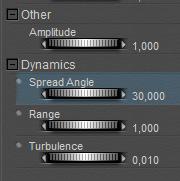
Amplitude is left at its default: 1,
Spread Angle is reduced to 30, it narrows the stream bundle width,
Range, beyond that no winds will blow so it has to reach beyond the banner at least,
Turbulence, just a bit for the fun of it.

And now, in Cloth Room, I can [Calculate Simulation…].

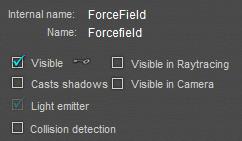
In most cases, the source of the wind is not what should be seen in the render, so I uncheck the visibility options in its properties. And render the result.


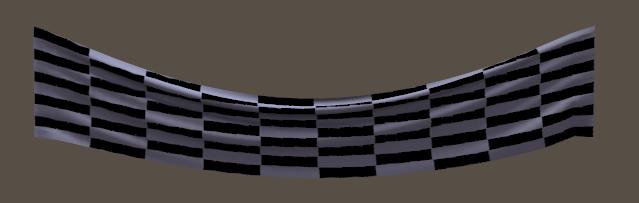
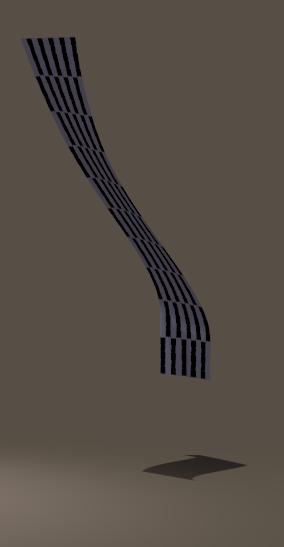
<= hanging vertical banner with wind.

Now, let’s discard the entire Choreographed Group which keeps the top of the banner in place. Then the banner will fall, while the winds are blowing. In the editor (Cloth Room, Edit Choreographed Group) I [Remove All]. And…


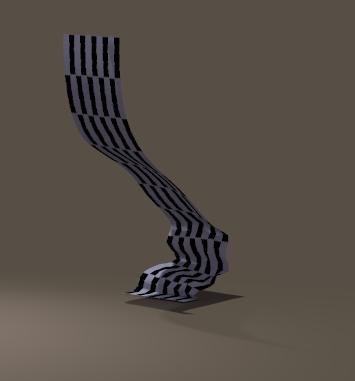
I have to add the Ground for a Collision Object (panel 2, Collide Against, check Ground). Otherwise, the cloth will fall right through it. Then, [Calculate Simulation…] again:

Note that even when the cloth is completely on the ground, the wind will keep blowing it away depending on the (dynamic) friction, until the cloth is out of range of the ventilator.


WARNING: in Poser 9 / Pro 2012, Service Release 3 (SR3), the Wind Generator in Cloth Room is BROKEN. You won’t get any effect. It’s not you, it’s a software bug

Case Study: Covering Up (08 Finish flag)

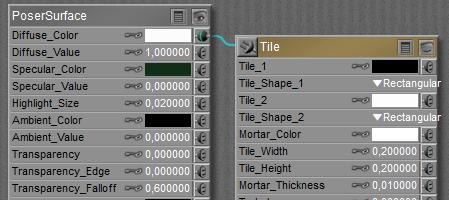
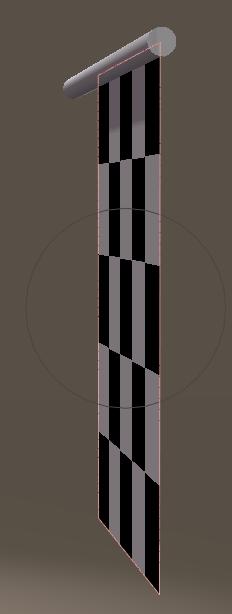
Since the car has escaped its covering cloth (see the Pin and Move II section), let me create a finish flag. So I import (or drag and drop) the 1×1 mtr X-tri cloth (in the download), give it a Black & White tile material:


and put it in upright position. I also get a standard Cylinder (Library, Props, Primitives) which I scale into a flag pole (20% overall, then 3000% in Y) and put in such a position that it intersects with the top vertices of the flag.

The next step is to animate the pole, and after that I’ll use Cloth Room to drag the flag with it. Pole first.

In the properties pane, I select my camera and switch off Animating, so I can freely move without seeing that back into my result.Next I set the pole: zRot = -90 at frame 1, zRot=0 at frame 30 and zRot =-90 again at frame 60.

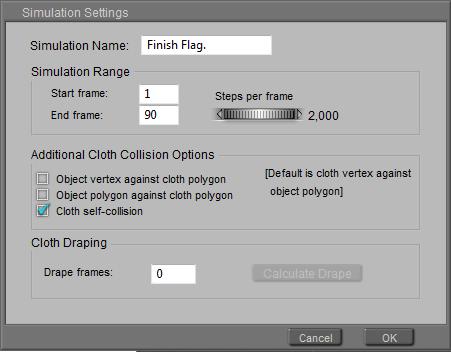
In Cloth Room, I create a [New Simulation…] (and call it Finish Flag for the sake of it) with the end frame set to 90 as I need 60 frames (2 sec) for the pole to animate, and then I like another second (30 frames) for the flag to come to rest. This might look better when I’m repeating the final result.

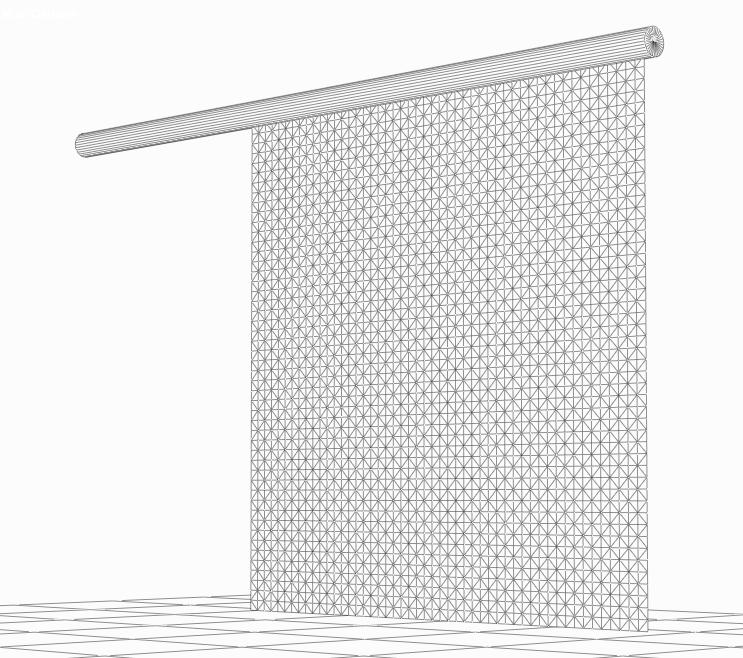
Since (see the wireframe) the cloth polys are fine compared to the pole I might not need the extra collision options but the waving flag will collide onto itself, especially around frame 30 when the flag still is going up somewhat while the pole is coming down already. I don’t need extra drape frames at the start.

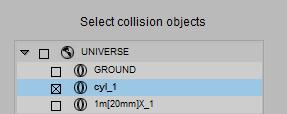
Then I [Clothify…] the flag, make it [Collide Against…] the pole, and leave all other settings to their defaults.


Now I have to fetch the flag to the pole, in such a way that the top vertices of the flag behave like nailed to the vertices and polys of the pole. The pole is in the collection of Collision objects, so putting the flag vertices in the Constrained Group will do.

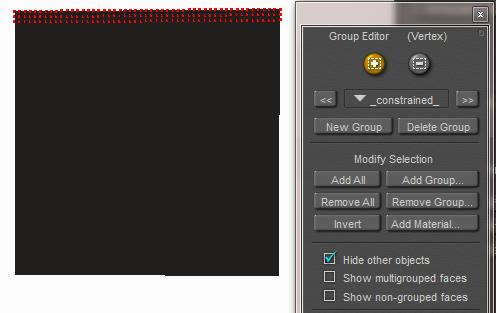
[Edit Constrained Group…] opens the editor, and checking Hide other objects gets the pole out of the way for the moment. I select the top three rows (the pole and flag intersect somewhere between row 2 and 3), uncheck the Hide objects and close the editor.
Note: when I forget to uncheck the Hide option I might need to make them visible again by using their own Properties setting, which might end up quite tedious when there are a lot.

For this demo I leave the cloth properties in panel 4 at their defaults (fine silk-ish), save the scene, and [Calculate Simulation].
It might come as a shock, but the flag falls off immediately. The Constraining seems to be without effect.

Now I do have two options:

  • Animate the flag itself
  • Change the pole

Animate the flag

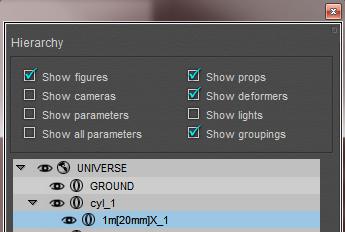
I [Clear Simulation] in Cloth Room, enter Pose Room, select the flag, goto frame 1, open the (menu Window >) Hierarchy editor and I drag the flag under the pole:


This makes the pole the Parent of the flag, and the flag the Child of the pole. Hence it will follow it’s movements.
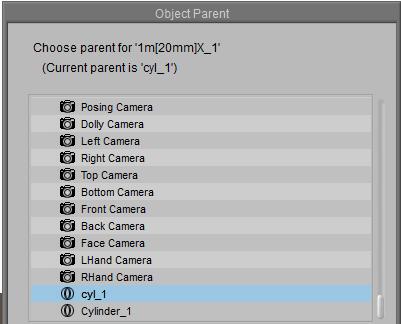
An alternative way to do this is: menu Object > Change Parent (NB: menu Figure . Set Figure Parent won’t work as the flag is a prop, not a figure).

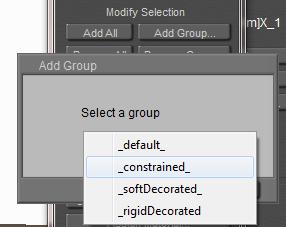
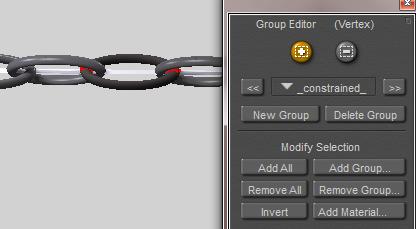
Now I have to tell Poser that some vertices of the flag should not follow the dynamics simulator, but should follow its animation (which results from following its parent, the pole). So, in Cloth Room, I [Edit Choreographed Group…], I click [Add Group] and I select the _constrained_ group. This puts the previously marked vertices into the other group.

To avoid confusion, I also [Edit Constrained Group…] and click [Remove All]. Actually, as each vertex should be in one group only, I would expect this group to be empty after the transfer but apparently Poser it not working that way when using the Modify Selection buttons. Maybe a bug, maybe a feature J.

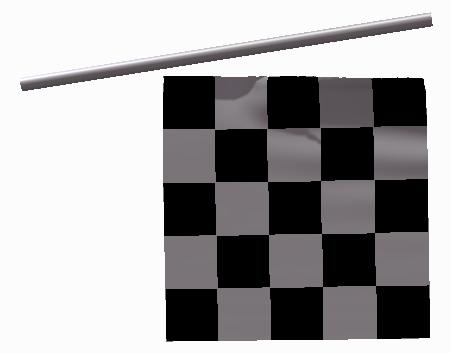
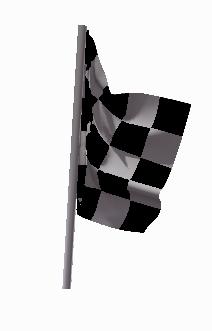
Anyway, after [Calculate Simulation] I get the result I wanted, as the figure at the left shows (frame 33).


Change the pole

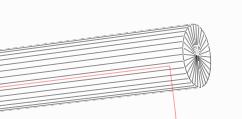
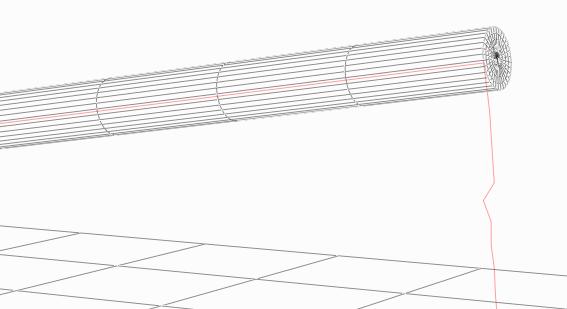
When you look closely to the wireframe of the pole, you will notice that it offers some vertices at the caps, but the main body is a set of very long polys from one end to the other, without any intermediate vertices. So when the vertices of the flag in the Constrained group look for pole-vertices to track, they hardly can’t find any. The constraining is a (cloth) vertex to (collision object) vertex relationship, not a poly-to-poly or a body-to-body one.
In other words: I want to nail the flag to the pole, but no nails are used. So I can look in the Library for a cylinder with several intermediate points, and shorter polys along the body. In Poser 9 / Pro 2012 the Morphing Cylinder prop is a nice one. It needs some extra care as the point of rotation is in the middle and not at one end so is has to be shifted first, but okay.

As you can see, it does not offer that much extra vertices and after [Calculate Simulation] I do find some improvements, but not that much. The flag is nailed to the pole but given all the forces on the flag, this small amount of nails can hold the flag for just a few frames only.

Conclusion
When using Constrained grouping, ensure that the cloth vertices meets enough object vertices to make the constraining actually happen. Objects with a low mesh-density or areas with large polys make the constraining hard to establish.

But as I illustrated, a simple animation of some vertices in the cloth can do the job as well, in some ways. And I illustrated the use and differences between the constrained and the choreographed groups.

Case Study: Covering Up (09 Simple Examples)

In this chapter I’d like to demonstrate some simple uses of cloth simulation.

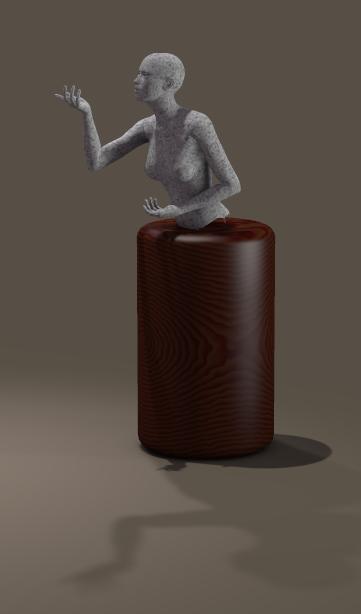
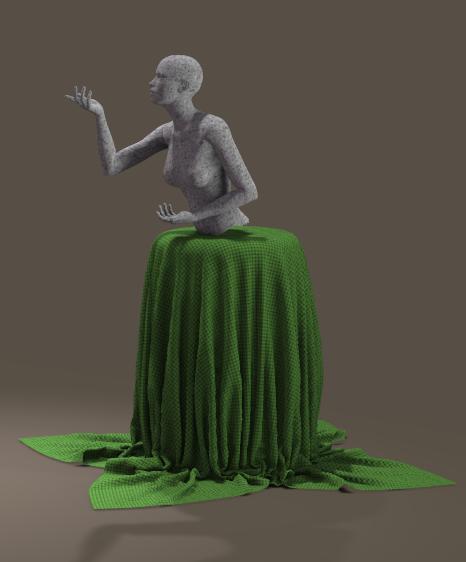
With a statue, where I did exclude and include the figure in the set of collision objects:

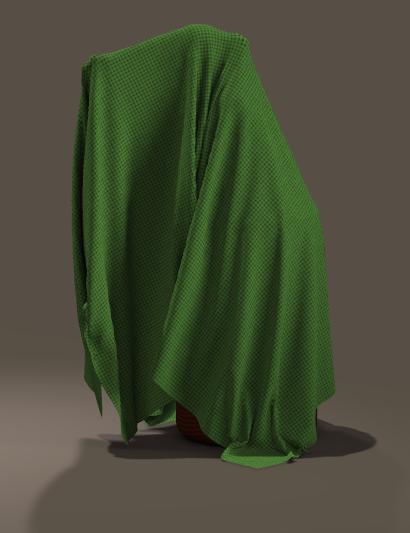
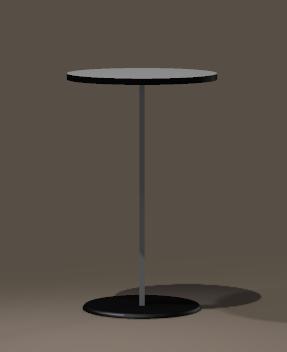
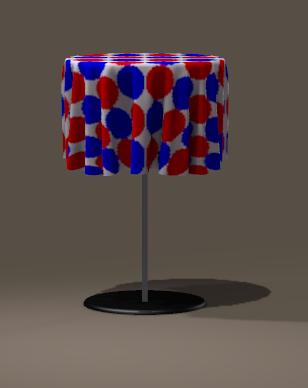
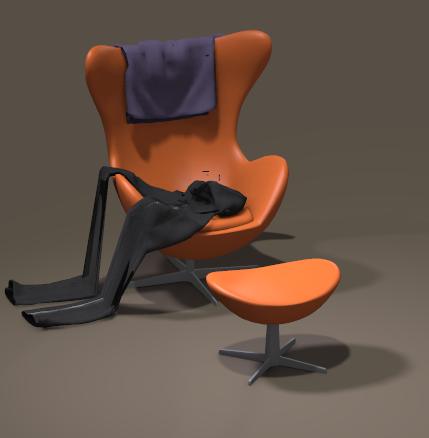
A table, covered with the round HighRes TableCloth (standard Poser 9/Pro 2012 Library prop), and some clothes thrown over a chair. Just drag them in place and – literally – drop them.

Case Study: Covering Up (10 Advanced Examples)

Clothifying hair

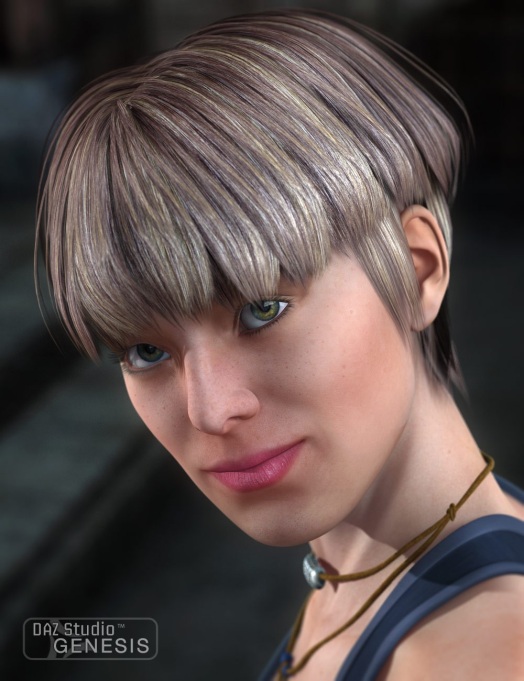
Cloth simulation might be a way to turn Conforming Hair into Dynamic.

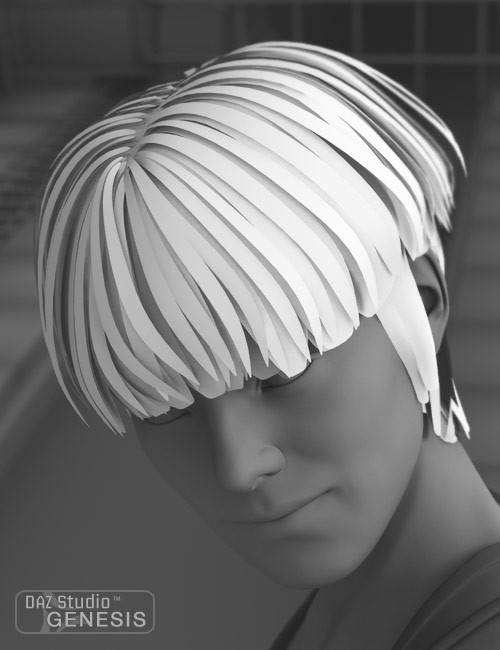
Luka Hair, by SWAM (2012).
Conforming hair strokes can be turned into dynamic by treating them like cloth. This make them bounce in animation, and swirl in the wind.

The large amount of fine hair strokes might bring a lot of work when I’d like to clothify them all (separately) but the fine structure might work out quite well in not too extreme conditions.

And… why should I clothify all strokes, perhaps I can do with the top ones only.

A Chain of Links

In the finishing part of this tutorial, I’ll make a swaying chain of iron links:

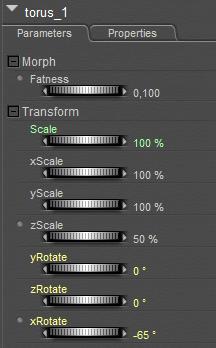
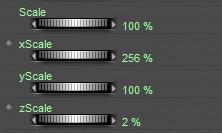
The links themselves are simple Torus primitives, which I shrunk a bit, opened up (zScale 50%, fatness 0,1) put in a row and I rotated the even ones a bit as the objects could not intersect:

This started the journey along the ways that could turn this series of links into a swaying chain. I will tell you about the mishaps first, and finish with a reasonable successful one.

Simple Clothifying

I open Cloth Room, start a [New Simulation…] and use [Clothify…] on all links 1..9, while the first (leftmost) link #0 is marked a collision object using [Collide Against…]. The alternative is clothify that one too but to put it completely in a choreographed group (which will freeze it, as I did not apply any animation on it).

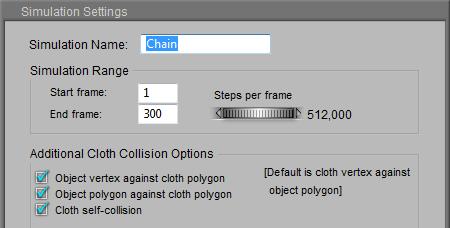
The idea is that the links will fall (except #0) and each link 1..9 is stopped doing so by the link next to it. As all clothified links are considered pieces of the same one cloth, I’ll need to check the Cloth self-collision option in the [Simulation Settings…].

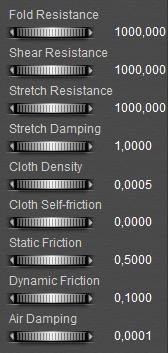
I also must turn the clothified links into steel ones: stiff compared to their density (mass), and dense compared to the world around them. So I raise the various Resistances to their max, while reducing Air Damping considerably.
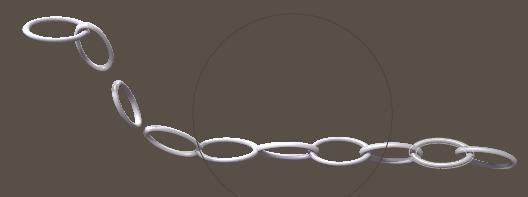
When running the sim, I found out it did not work. The first clothified link did stick to the collision object link left to it but the chain broke at the next link. This means that the chain is moving too fast for the simulation to handle the collision, and pumping up the Steps-to-Frame settings in the [Simulation Settings…] is actually the only way out. But to what extent?

The image above shows the result of Steps set to 128 (the sim takes 10 sec/frame) and further testing reveals that Steps set to 512 (40 sec/frame calculation time) only improves the result a little bit.

Altering the collision parameters has no effect, as these concern the interaction between the clothified objects and the collision objects only. And the breaking chain shows that the issue is in the interaction between the clothified objects themselves. 


So, this is not the way.

The Helper Object

My next attempt introduces a simple, long and small cloth plane: the Stripe.

I put the leftmost vertices in a Choreographed group to fixate the Stripe in space, and I gave it the maximum Resistance parameter values similar to the steel links, except for Folding to prevent it from behaving like a steel plate.

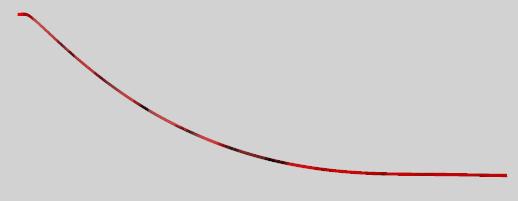
Then I ran the sim calculations and found out I needed say 600 frames to give a full right-left-right sway to this stiff object.


Now the question was: how do I connect the steel links to it? I can

  • Parent them to it
  • Attach them as (hard) decorated groups
  • Constrain them to it

Parenting the Links
So I made the Stripe the parent object for all Link objects. Would they follow the movements of the Stripe?

No, they did not, for a simple reason. Parenting implies that the rotation, scaling and displacement of an object as defined by its local origin and axes follow the same of its parent object defined by its local origin and axes. But… the sim calculations do not rotate, scale or displace the Stripe object as such. They produce a morph, displacing all the individual Stripe vertices relative to the Stripe’s local origin and axes, but the local origin is left untouched.

As a result of that, the Link objects are not going to move either. This is not the way.

Decorating the Stripe
Now I used the sim for the Stripe, added all Links to it while clothifying them all. Then I put all vertices in a (Rigid) Decorated group, for each Link. So, actually the sim works on the Stripe, and the Links were expected to follow.
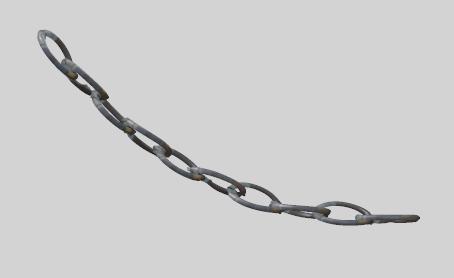
Well, in my simple test they did not. The point is, a piece of cloth and its decorations are expected to be one 3D mesh. They should not share vertices not should assigning vertices to the Decorated group leave holes in the cloth, but there should be some edges in the mesh connecting them. Like a button on a jacket: both are separate but a little thread stitches them together and prevent the button from falling off.

In this case, the stitching thread is missing. The Stripe and the Links are separate objects, and there are no edges connecting vertices of the one to the other.

Constraining the Links

Next idea: what if I treat the links as individual, clothified items like I did at the start, but let each of them follow the chain-stripe the closest as possible? That means: next to the sim which creates the movements of the stripe, I make a second sim containing all the links, and contains the stripe as a collision object. Each link then has a serious Constrained group, relating the link to the stripe. Since this relationship is used at the vertex level, the links can be expected the movements and deformations of the stripe to the closest. At the same time the links are not really hanging to each other anymore (or at least far less), which might prevent the issues mentioned previously.
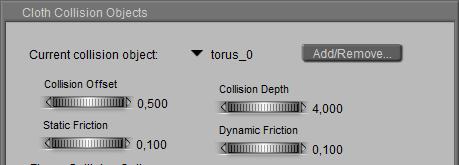
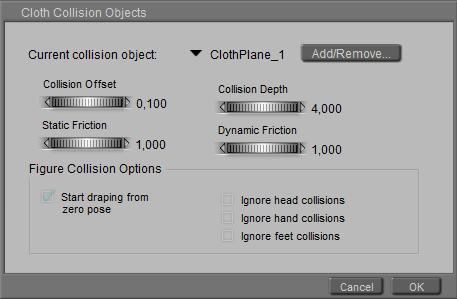
To prevent the links from slipping along the strip I raised the Frictions, and while I kept on having issues with links snapping off, I solved them by raising the Collision Depth (and altering the other settings as well)

Of course the sim had to be as long as the movements of the chain stripe (600 frames). As I kept having links with intersecting polys (not believable for steel), and snapping off during the sim, I checked the other options and started raising the Steps per Frame. Simple: the intersecting objects suggest that the speed at which they collide is too high to handle, so I have to consider smaller steps in the sim or: more steps per frame.

I ended up at 128 steps per frame. Each frame required about 40 sec to calculate with this amount of steps and all options switched on. Times 600 frames make 24,000 sec = 400 mins = about 7 hours. I do have a fast machine (i990 @4GHz) but this was a typical overnight run.

The result is okay, at least for the first 400 frames. From then on the links suffer noticeably from being clothified: they start getting a deformed shaped in quite an un-steel like way. But anyway, this ‘constrained to the stripe’ seems to be a promising approach. Wild and large chain movements might need some more elaboration, by my girls can wear a chain for a belt from now on. Simulate a normal cloth stripe (belt) first, then constrain the links to it and simulate the links.

For rendering, I gave the links a rough greyish material with some shine to suggest a rough steelish feel, and I made the stripe itself invisible as it’s a helper object after all.